
Centro de Ayuda - Guías de Configuración
Instalación
Para confirmar si su Mac utiliza un procesador Intel o Apple Silicon:
- Haga clic en el icono de Apple en la esquina superior izquierda de la pantalla
- Seleccione "Acerca de esta Mac"
- En la ventana emergente, verifique la información de "Chip o Procesador". Si comienza con Intel, es un procesador Intel; de lo contrario, es un procesador Apple Silicon
- 1.
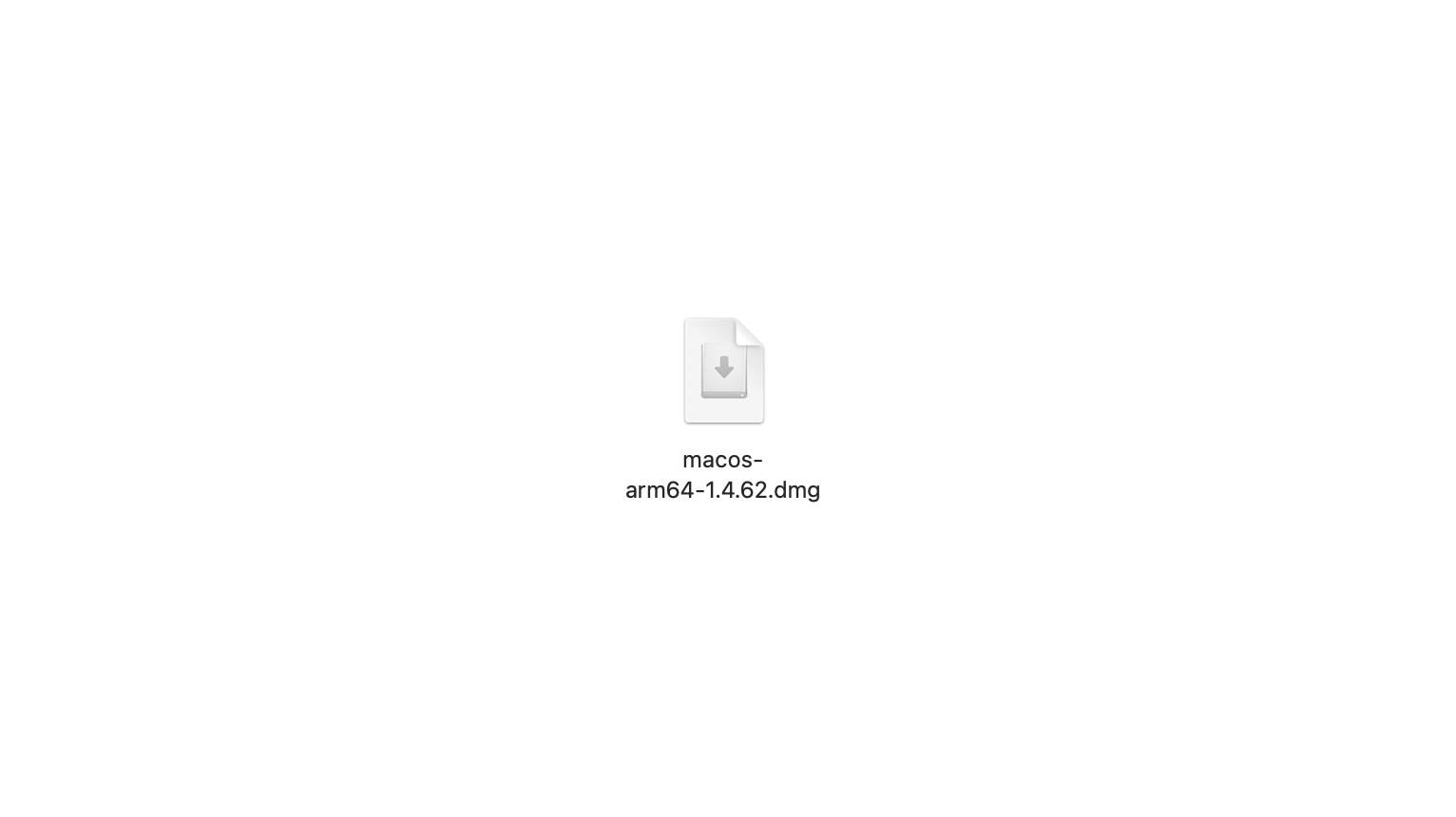
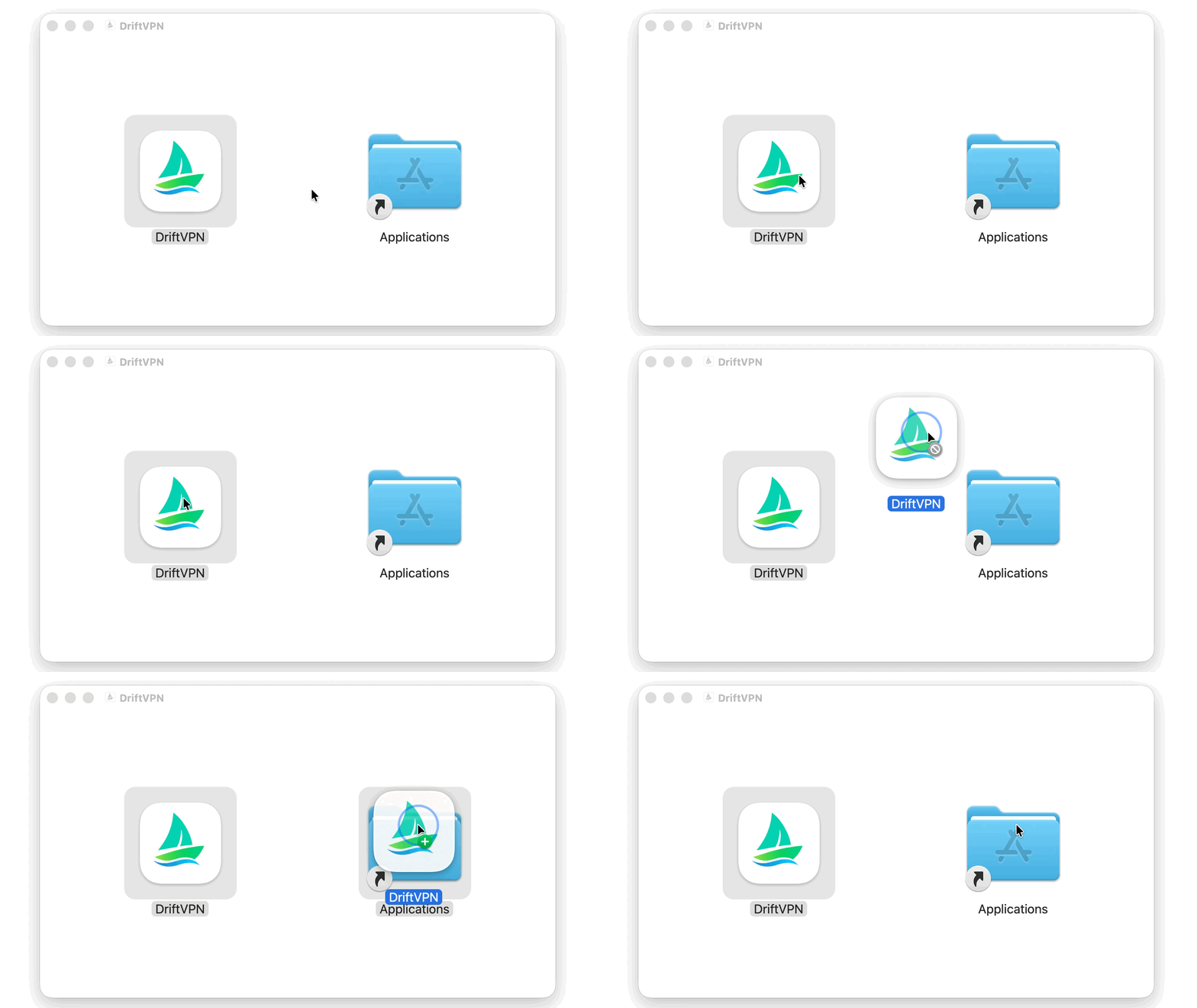
Después de descargar el instalador de macOS, abra el archivo .dmg y arrastre VPN a Aplicaciones.
- 2.
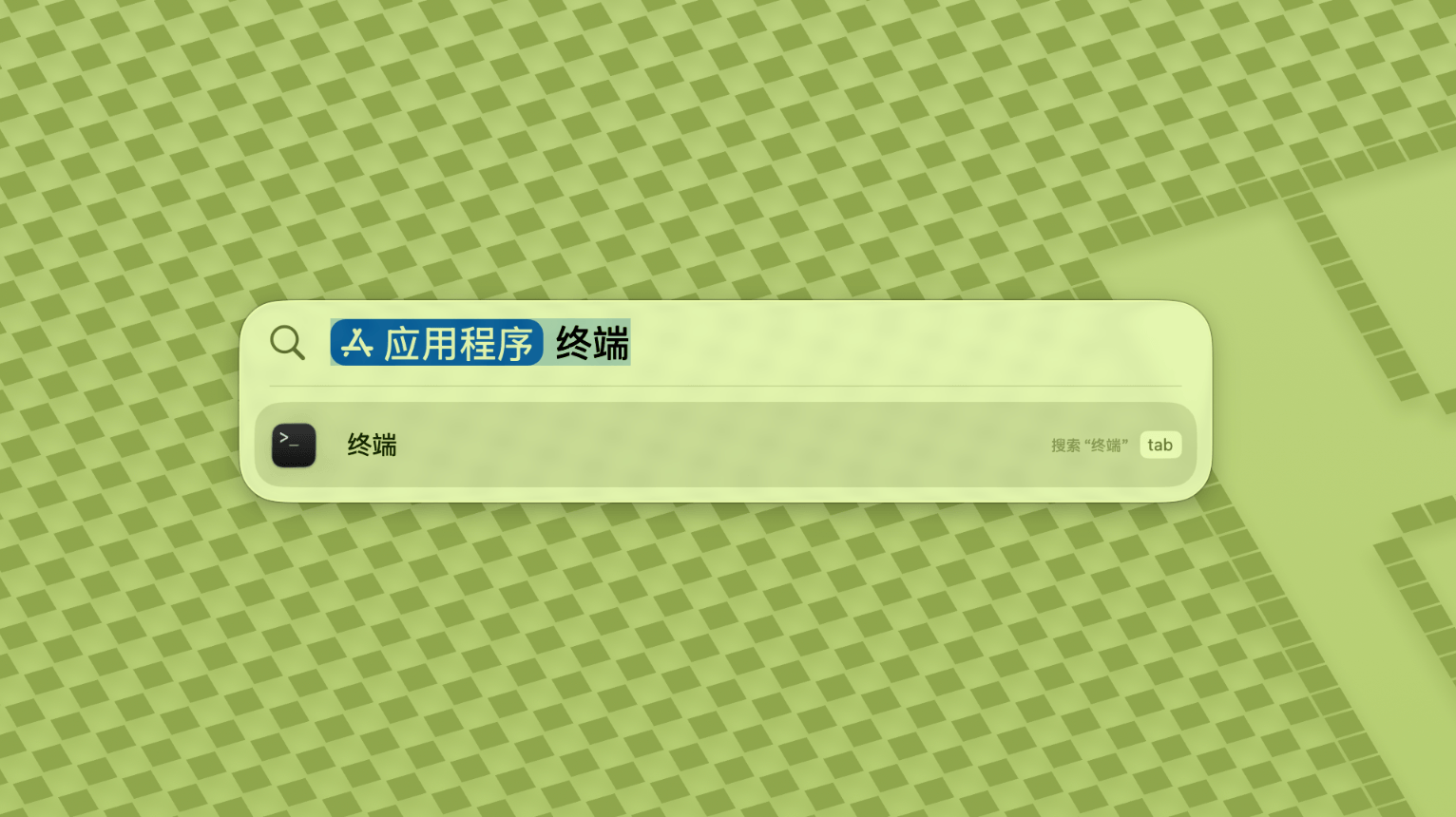
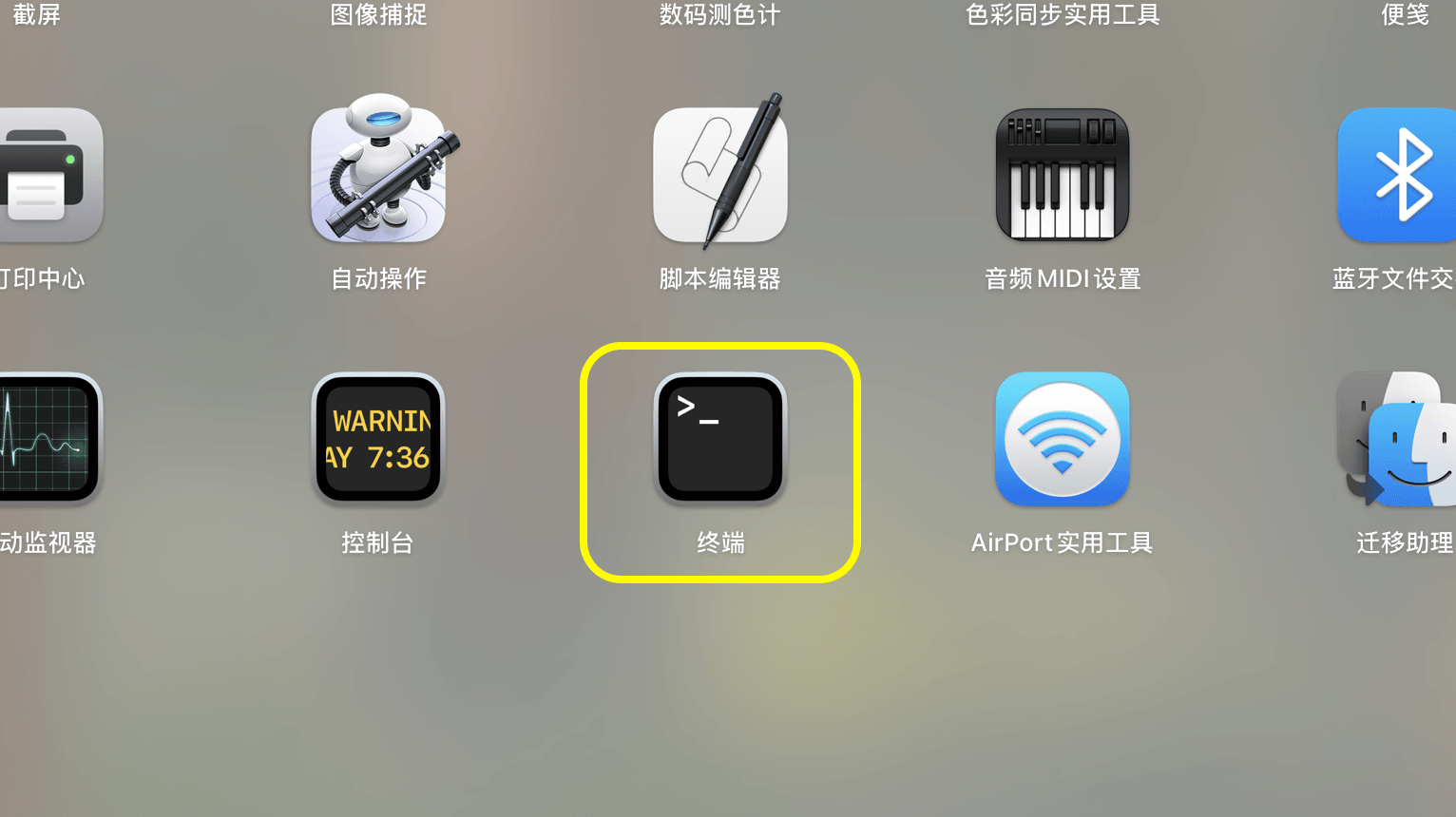
Abra Launchpad o Spotlight, luego busque y abra Terminal.
- 3.
Pegue el comando a continuación en Terminal y presione Enter. Ingrese su contraseña de inicio de sesión de Mac cuando se le solicite; los caracteres no aparecerán mientras escribe. Presione Enter nuevamente cuando termine.
sudo xattr -rd com.apple.quarantine /Applications/DriftVPN.app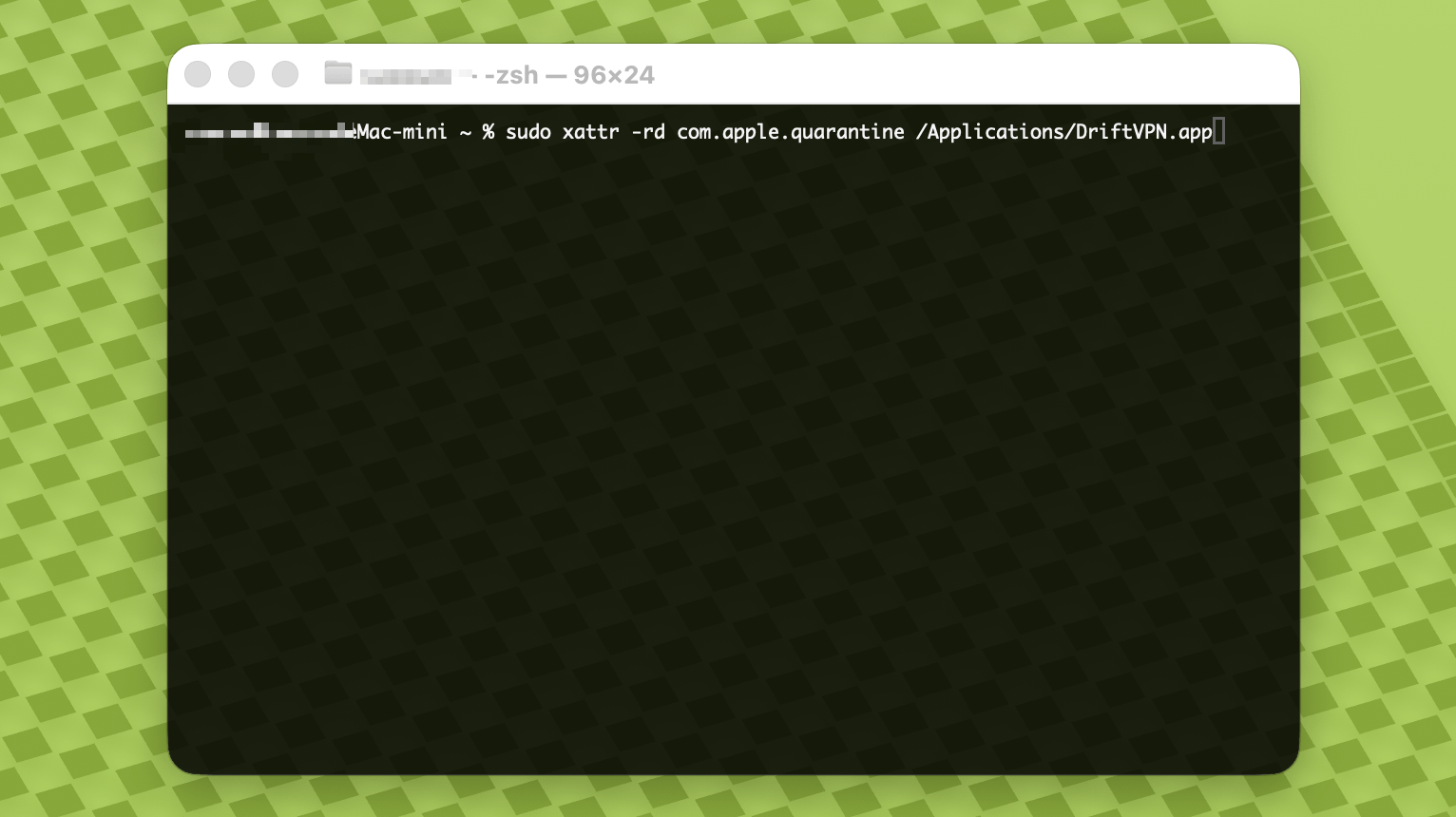
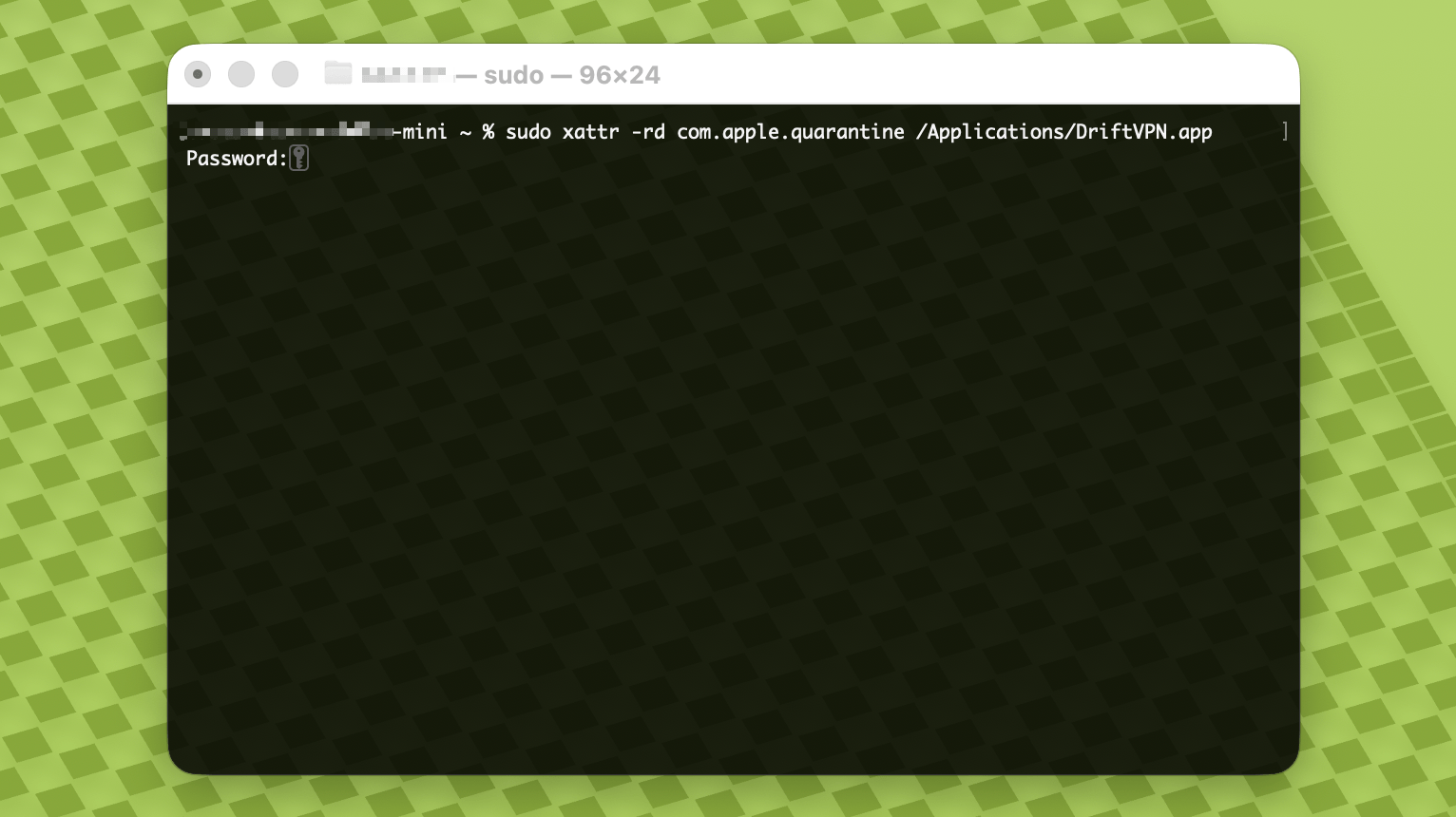
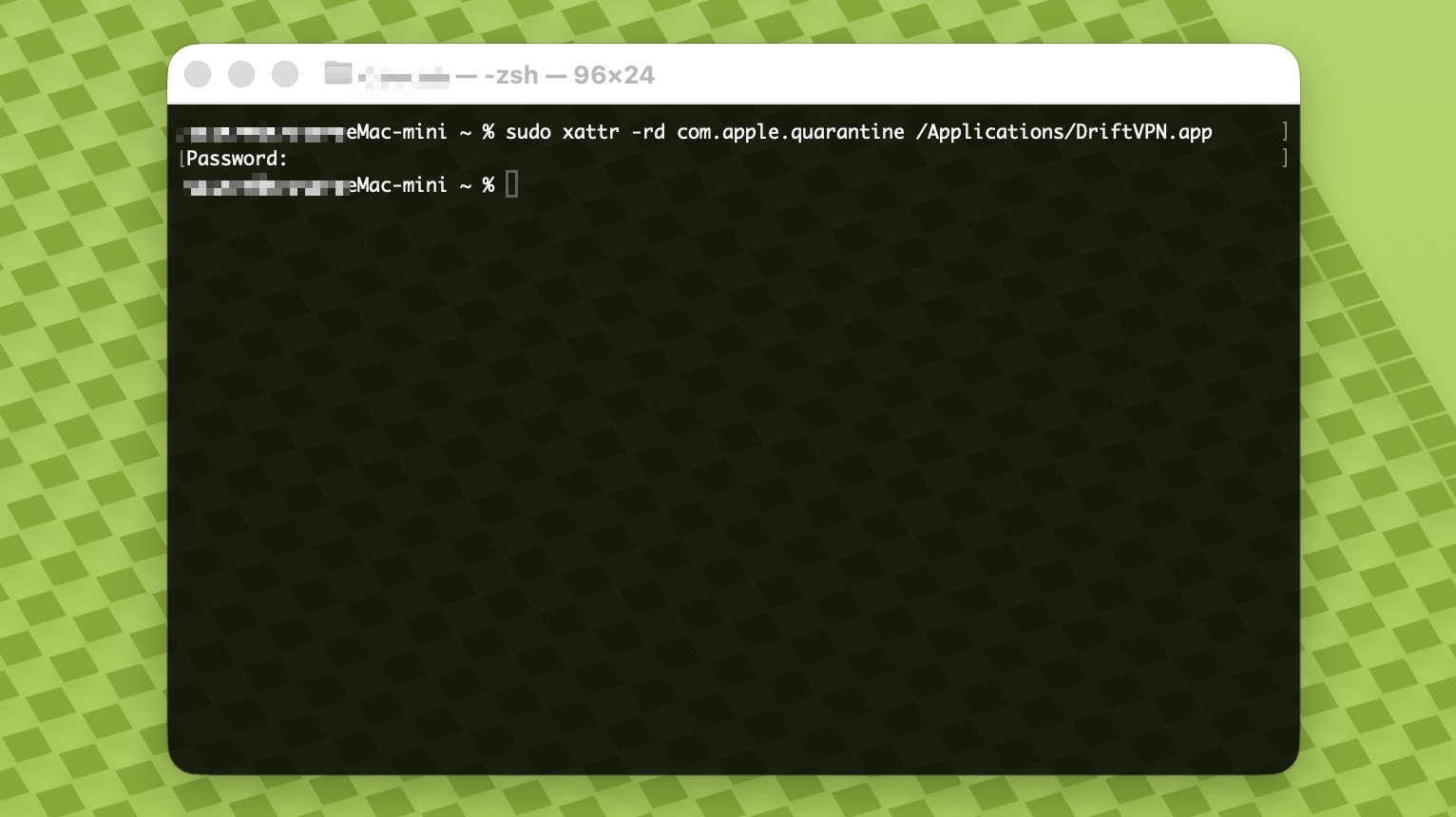
- 4.
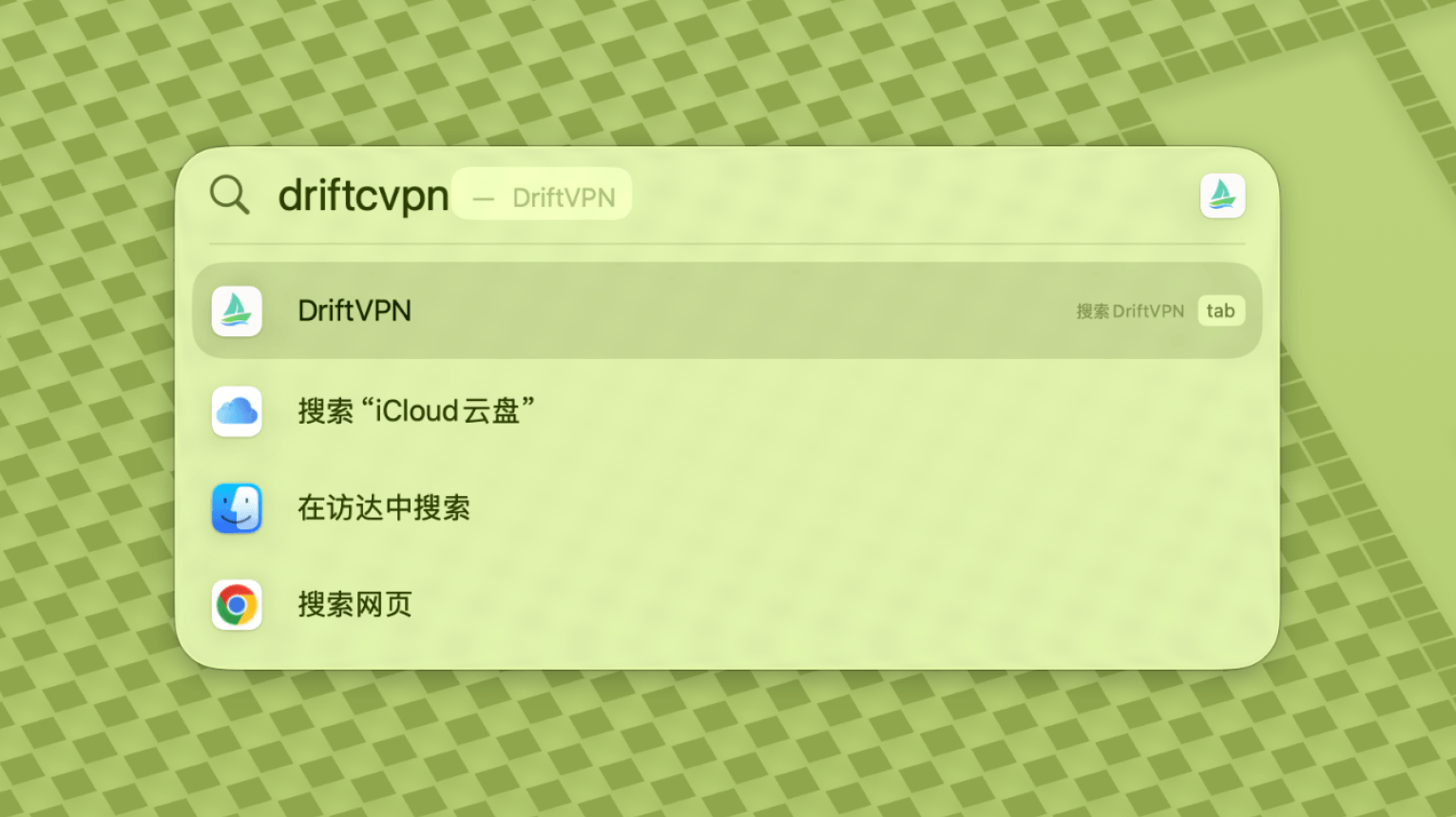
Después de que finalice el comando, busque VPN o ábralo desde Aplicaciones.
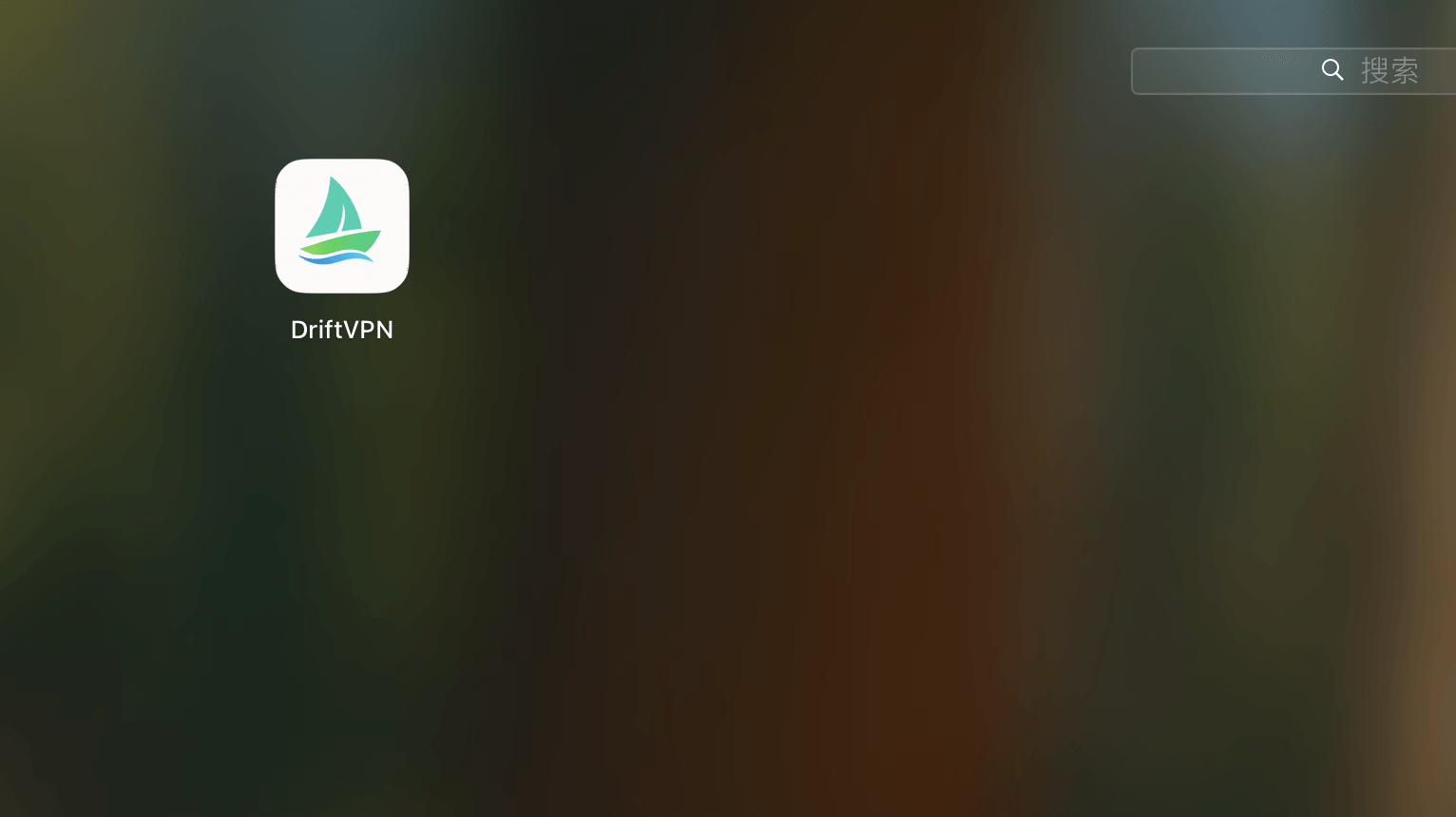
- 5.
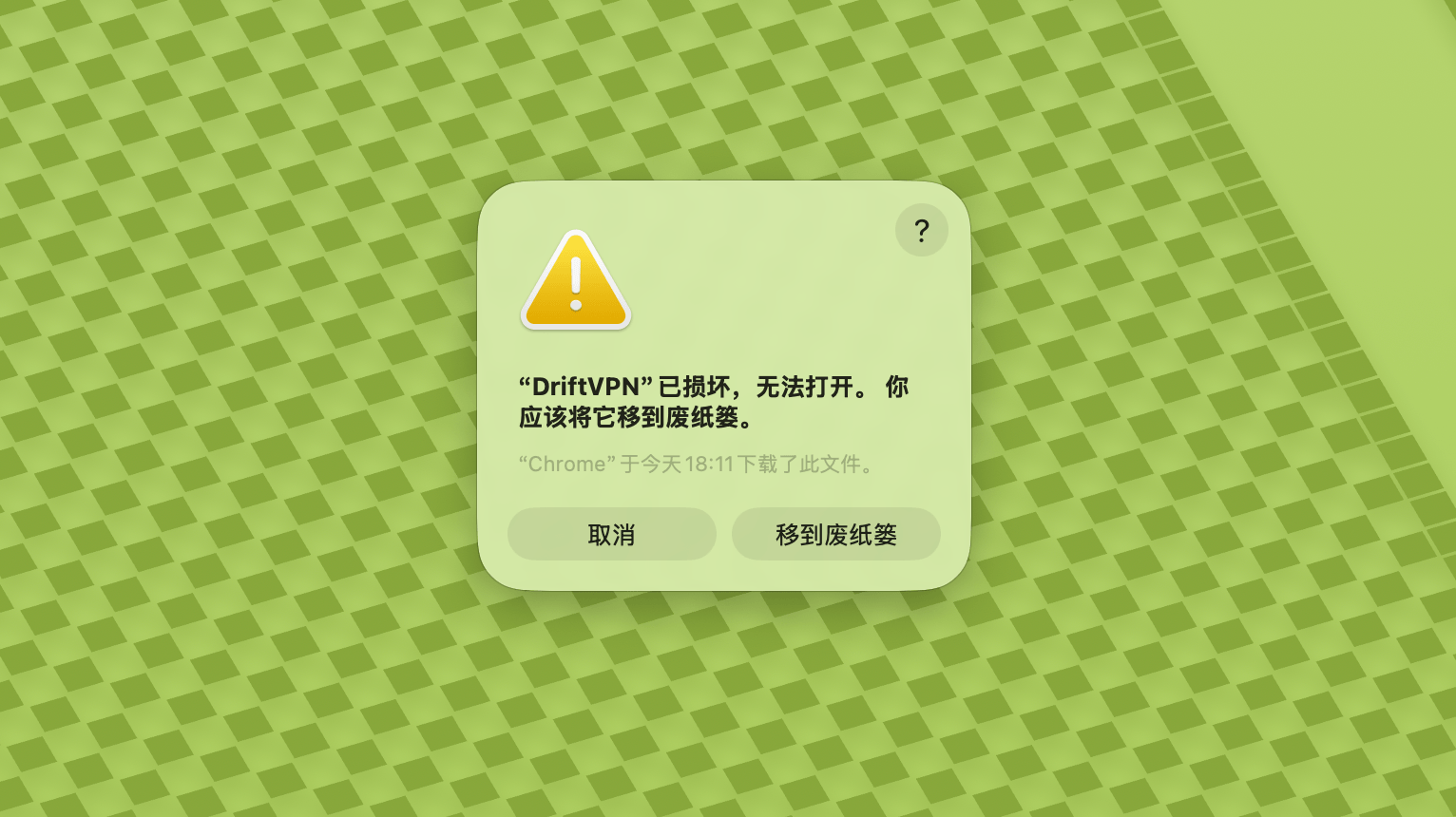
Si macOS sigue bloqueando la aplicación, vaya a Configuración del Sistema → Privacidad y Seguridad y haga clic en Abrir de todas formas en la sección Seguridad. Si indica que la aplicación está dañada, descargue el instalador más reciente nuevamente y repita el comando anterior.
Si no puede abrir VPN en macOS, vaya a Configuración del Sistema → Privacidad y Seguridad, desplácese hasta la sección Seguridad y haga clic en Abrir de todas formas.
Para confirmar si su computadora con Windows utiliza un procesador x64, ARM64 o x86 (32 bits):
- Abra la herramienta de información del sistema. Presione Win + R, escriba msinfo32 y luego presione Enter
- Vaya a Resumen del sistema → Tipo de sistema, verá la información de la arquitectura del sistema
Mensaje de error: el archivo ejecutable del proxy no existe. O mensaje: el archivo contiene un virus o software potencialmente no deseado. Solución:
Método 1:
- Abra 'Configuración' → 'Privacidad y seguridad' → 'Centro de seguridad de Windows' → 'Protección contra virus y amenazas'
- Haga clic en 'Administrar configuración'
- En la parte inferior, agregue o elimine exclusiones y agregue el directorio de instalación de Drift a las exclusiones
Método 2:
- Abra 'Configuración' → 'Privacidad y seguridad' → 'Centro de seguridad de Windows' → 'Protección contra virus y amenazas'
- Haga clic en 'Administrar configuración'
- Desactive la 'Protección en tiempo real'
Si la aplicación no se puede conectar después de iniciarse en Windows, normalmente el Firewall de Windows Defender la está bloqueando. Soluciones:
Método 1: Añadir excepción desde el Panel de control
- Pulse Win + S y busque: Panel de control
- Vaya a: Sistema y seguridad → Firewall de Windows Defender
- A la izquierda, haga clic en: Permitir una aplicación o una característica a través de Firewall de Windows Defender
- En la parte superior derecha, haga clic en: Cambiar la configuración
- Haga clic en: Permitir otra aplicación
- Haga clic en: Examinar y seleccione su archivo .exe (ruta predeterminada: C:\Users\[usuario]\AppData\Local\VPN\QingZhou.exe)
- Después de añadir, marque: Privada y Pública (si necesita acceso a redes externas)
- Haga clic en: Aceptar
Método 2: Crear reglas en el Firewall de Windows Defender con seguridad avanzada
- Pulse Win + S, busque 'Firewall de Windows Defender con seguridad avanzada' y ábralo
- Haga clic en 'Reglas de entrada' a la izquierda → haga clic en 'Nueva regla' a la derecha
- Seleccione: Programa → Siguiente
- Seleccione 'Esta ruta de programa', examine y seleccione su archivo .exe → Siguiente
- Seleccione: Permitir la conexión → Siguiente
- Marque: Dominio, Privado, Público (normalmente todos) → Siguiente
- Introduzca un nombre (p. ej., DriftVpn Inbound) → Finalizar
- Repita los pasos para 'Reglas de salida' (seleccione 'Reglas de salida' a la izquierda; el flujo es el mismo que el de entrada)
Puedes descargar e instalar VPN para Android de la siguiente manera:
- Abre la página de descarga oficial y elige Android.
- Descarga el paquete de instalación de Android en tu teléfono o tableta.
- Abre el archivo APK descargado desde las descargas de tu navegador o el administrador de archivos.
- Si Android solicita permiso para instalar aplicaciones desconocidas, permítelo para el navegador o administrador de archivos actual y continúa con la instalación.
Algunos navegadores o sistemas pueden guardar el archivo APK con extensión .zip. Trátalo de la siguiente manera:
- No descomprimas el archivo.
- Abre el administrador de archivos y renombra el archivo descargado, cambiando la extensión de .zip a .apk.
- Toca el archivo .apk renombrado para instalarlo.
- Si no puedes renombrarlo, descárgalo de nuevo o usa otro navegador para descargar el APK.
Debido a razones de política, VPN no está disponible en la App Store de China. Puedes descargarlo:
- Necesitas un Apple ID no chino (por ejemplo, EE. UU., Japón, Hong Kong, etc.)
- Cambia a la cuenta no china en la App Store
- Busca 'VPN' para encontrarlo y descargarlo
- Si no tienes un Apple ID extranjero, puedes buscar en línea tutoriales sobre cómo registrar un Apple ID extranjero gratuito
Cuenta
Si olvidaste tu contraseña de inicio de sesión, puedes restablecerla siguiendo estos pasos:
- Ve a la página de inicio de sesión y haz clic en '¿Olvidaste la contraseña?'
- Ingresa tu dirección de correo electrónico registrada
- Revisa tu correo electrónico para encontrar un código de verificación de 6 dígitos (válido por 5 minutos)
- Ingresa el código de verificación y tu nueva contraseña para completar el restablecimiento
Problemas de pago
Actualmente se admiten los siguientes métodos de pago:
- Visa/Mastercard
Si necesitas cancelar tu suscripción, primero confirma en qué plataforma la contrataste. El proceso de cancelación varía según la plataforma, y desinstalar la aplicación no cancela la suscripción automáticamente.
Suscripción desde el sitio web
Pasos:
- Ve al sitio web oficial e inicia sesión con tu cuenta desde la esquina superior derecha.
- Tras iniciar sesión, haz clic en «Mi cuenta – Plan y facturación» en la esquina superior derecha.
- Haz clic en el botón Administrar junto a los detalles de tu plan.
- Cancela tu suscripción en la página de Stripe.
iOS
Si te suscribiste a través de la App Store en iPhone o iPad, cancela a través de Apple:
- Abre Configuración en tu iPhone o iPad.
- Toca tu nombre de cuenta Apple en la parte superior.
- Toca Suscripciones.
- Selecciona la suscripción VPN.
- Toca Cancelar suscripción.
Si usas un dispositivo iOS pero te suscribiste a través del sitio web, sigue los pasos de «Suscripción desde el sitio web» indicados arriba.
Android
Las suscripciones de Android que no son de Google Play se procesan a través de Stripe. Consulta «Suscripción desde el sitio web» arriba para cancelar.
Android – Google Play
Si te suscribiste a través de Google Play, cancela desde Google Play:
- Abre Google Play.
- Toca el ícono de perfil en la esquina superior derecha.
- Ve a Pagos y suscripciones.
- Toca Suscripciones.
- Selecciona la suscripción VPN.
- Toca Cancelar suscripción y sigue las instrucciones.
Mac
Las suscripciones que no son de Mac App Store se procesan a través de Stripe. Consulta «Suscripción desde el sitio web» arriba para cancelar.
Mac – App Store
Si te suscribiste a través de Mac App Store, cancela a través de Apple:
- Abre la App Store en tu Mac.
- Haz clic en tu nombre de cuenta.
- Haz clic en Configuración de cuenta.
- Encuentra Suscripciones y haz clic en Administrar.
- Selecciona la suscripción VPN.
- Haz clic en Cancelar suscripción.
Windows
Consulta «Suscripción desde el sitio web» arriba para cancelar.
Uso
Puedes iniciar tu prueba de VPN con estos pasos:
- Registra una cuenta en el sitio web oficial o en cualquier cliente
- Inicia sesión en tu cuenta en cualquier cliente
- Toca el botón de encendido en la página principal para comenzar a usar el servicio
Si tienes un código de activación, puedes canjearlo después de iniciar sesión:
- Inicia sesión en tu cuenta en el sitio web o en el cliente.
- Haz clic en Mi cuenta en la esquina superior derecha, luego elige Canjear código de activación en el menú desplegable.
- Ingresa el código de activación y confirma el canje.
- Después de que el canje sea exitoso, el paquete o beneficio correspondiente se añadirá automáticamente a tu cuenta.
- Si no aparece ningún mensaje de éxito, el código de activación ya ha sido utilizado.
- Después de la activación, reinicia la aplicación para que el paquete o beneficio entre en vigor.
VPN actualmente es compatible con las siguientes plataformas:
- Android (teléfonos y tabletas)
- iOS (iPhone e iPad, requiere una App Store no china)
- macOS (compatible con chips Intel y Apple Silicon)
- Windows (compatible con arquitectura x64)
Una cuenta admite hasta 3 dispositivos en línea simultáneamente. Puedes instalar el cliente e iniciar sesión en más dispositivos; solo se limita la cantidad de dispositivos conectados al mismo tiempo. Si se supera el límite, el dispositivo conectado primero se desconectará automáticamente. Actualmente el cliente no permite desconectar otros dispositivos ni cerrar su sesión con un clic. Para liberar un cupo en línea, desconecta o cierra sesión manualmente en ese dispositivo.
Controlan qué tráfico pasa por la VPN:
- El Proxy Global envía la mayor parte del tráfico de red a través de la VPN. Úsalo cuando quieras que todas las aplicaciones y sitios web usen la conexión proxy.
- El Enrutamiento Inteligente solo enruta a través del proxy el tráfico que necesita aceleración u optimización de acceso. El tráfico local y accesible directamente permanece en la red original, lo que suele ser mejor para el uso diario.
- Las reglas VPN integradas cubren la mayoría de las necesidades, y también puedes añadir tus propias reglas de proxy.
- 1.
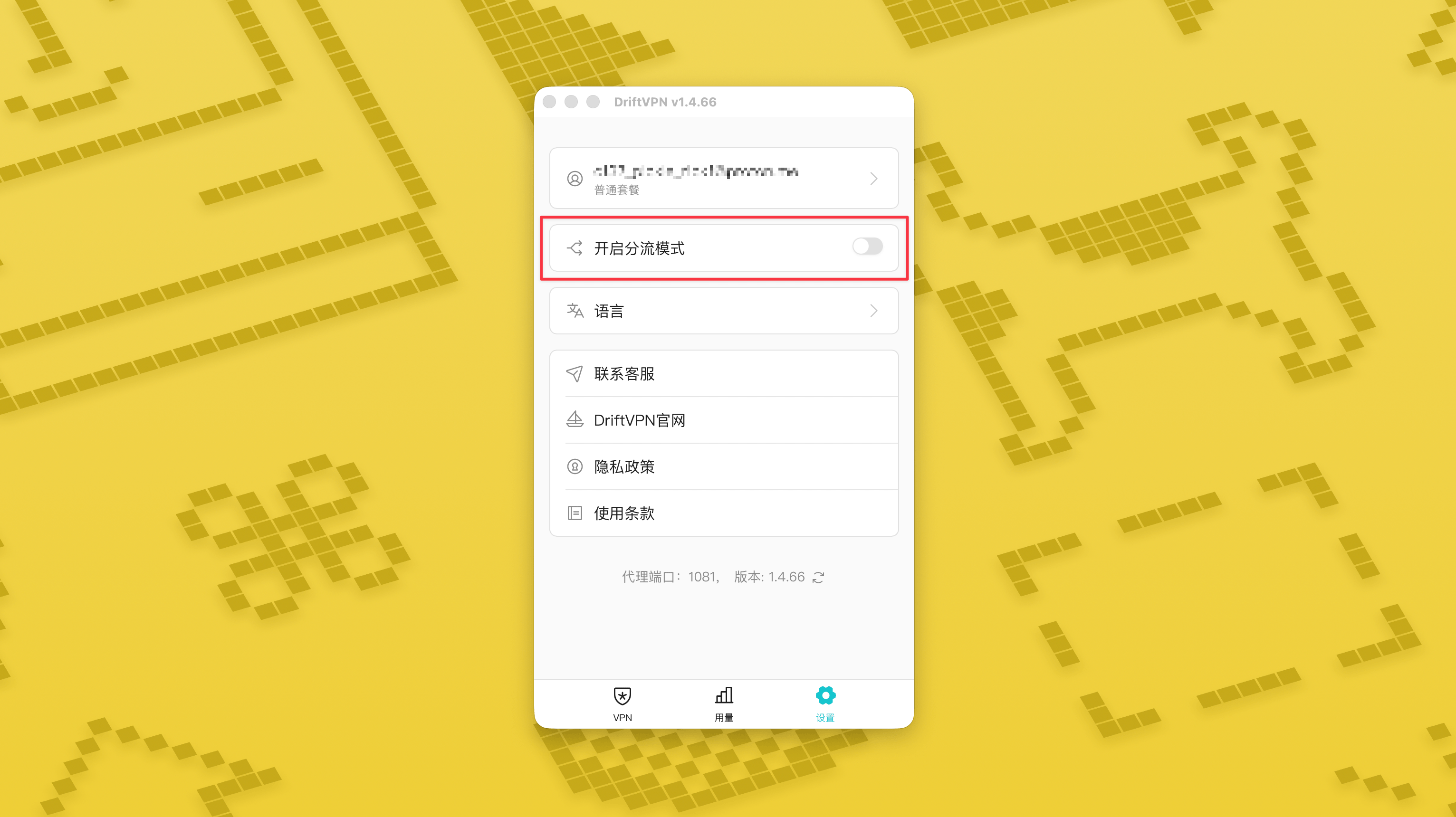
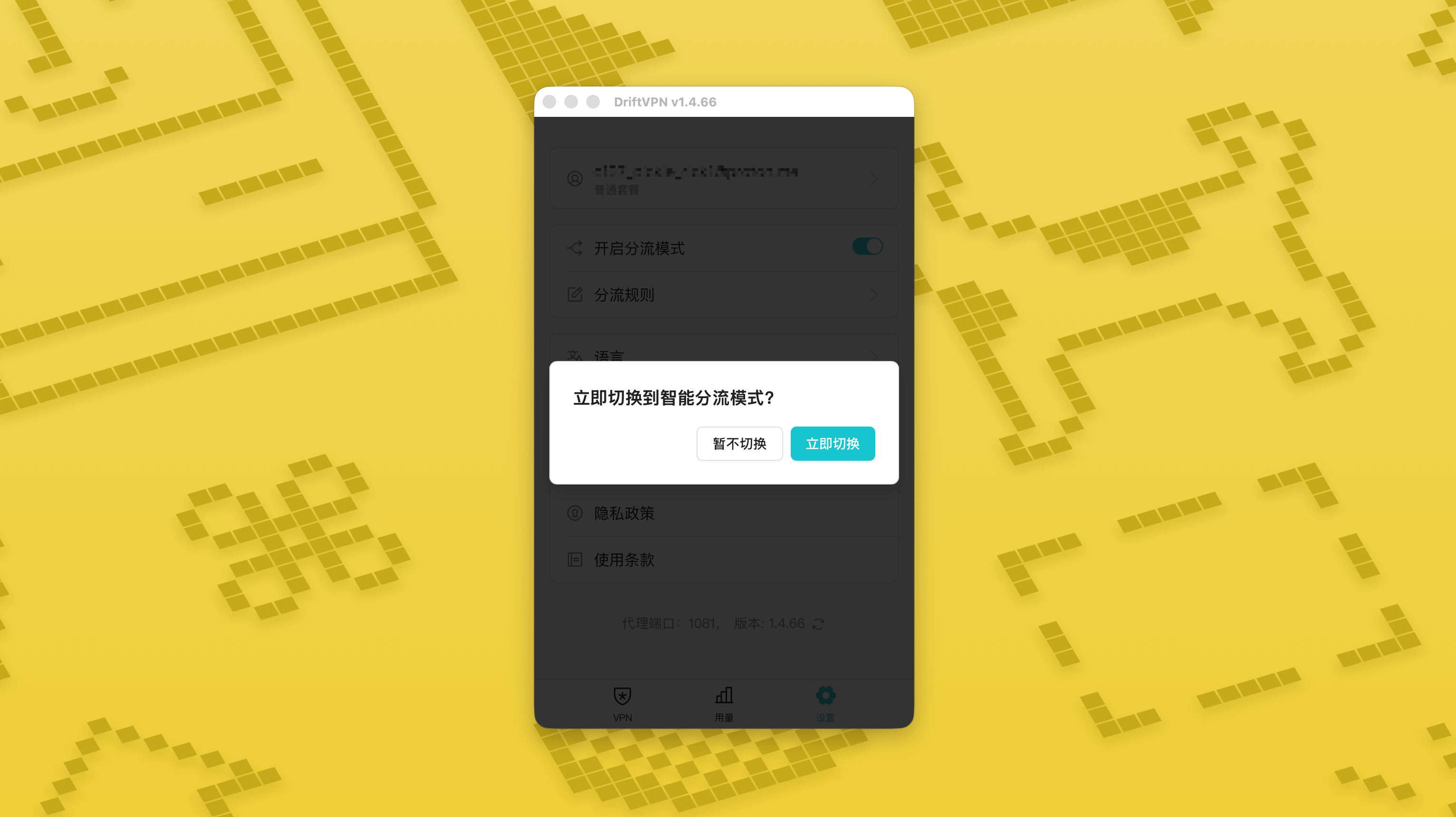
En la página de Configuración, activa el interruptor del modo de enrutamiento inteligente y luego pulsa «Cambiar ahora» para habilitarlo.
- 2.
Después de activarlo, puedes cambiar entre «Proxy global» y «Enrutamiento inteligente» en la página de inicio.
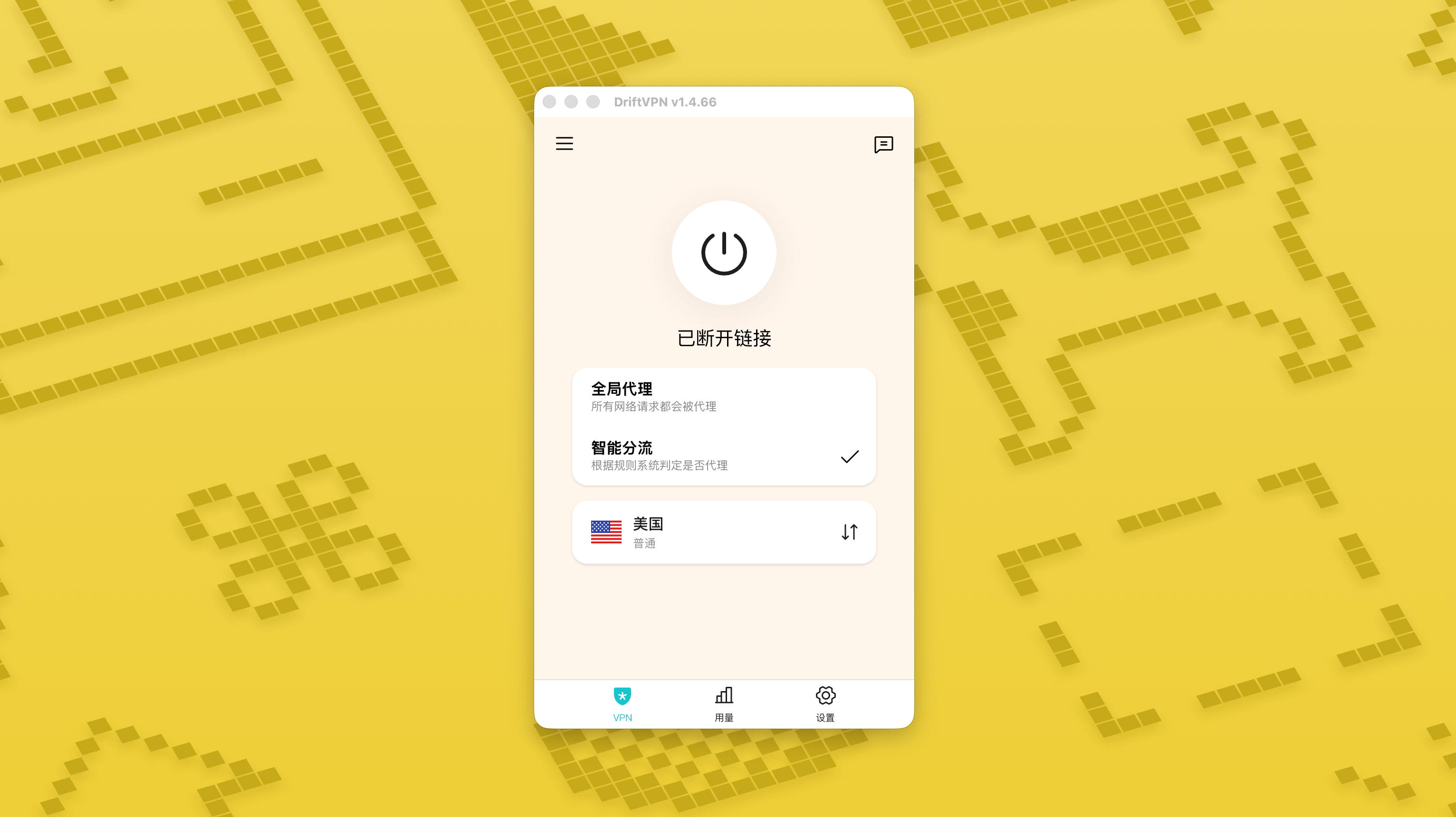
- 3.
Después de activar el modo de enrutamiento inteligente, aparecerá la página «Reglas de enrutamiento» en Configuración.
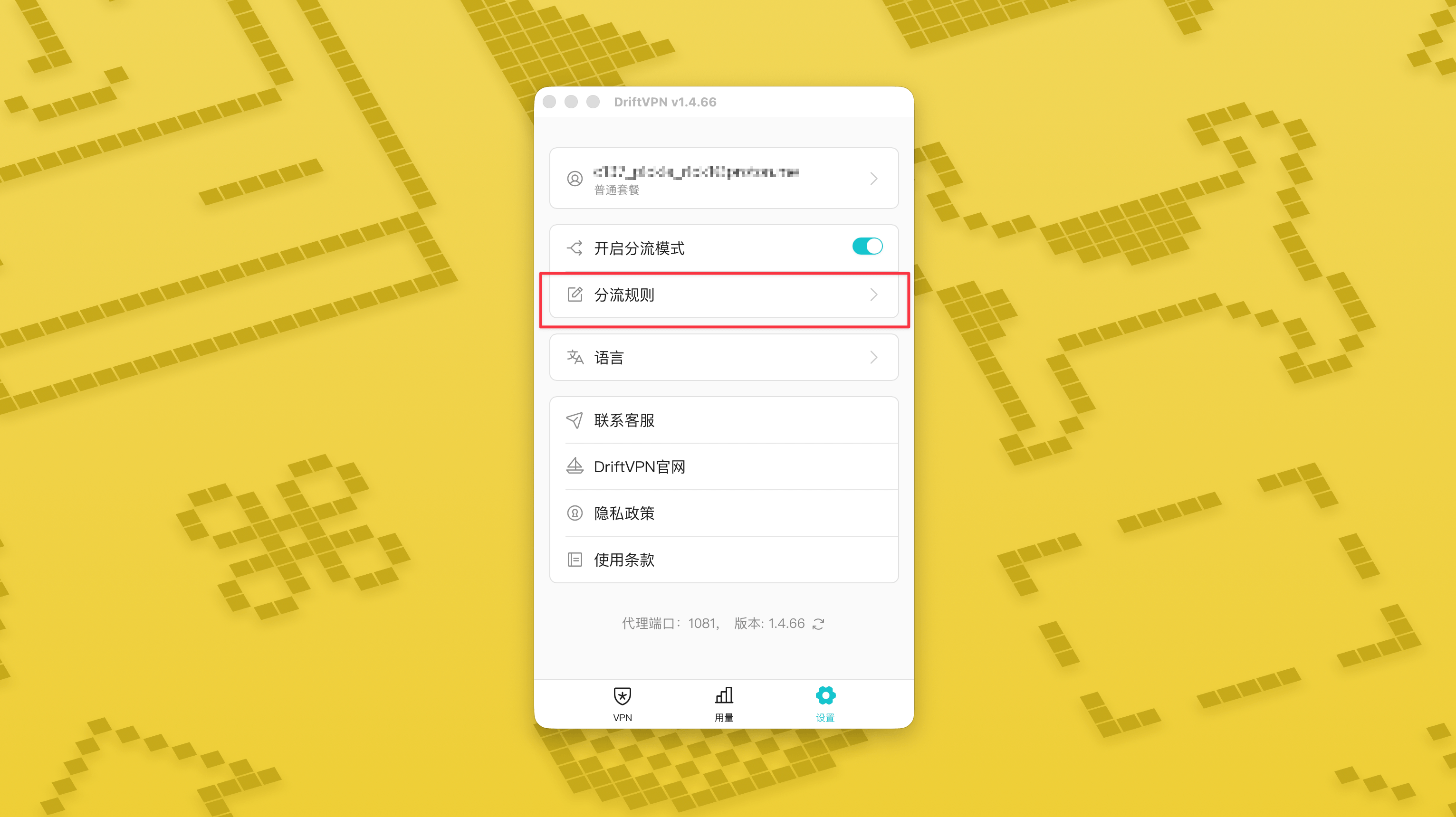
- 4.
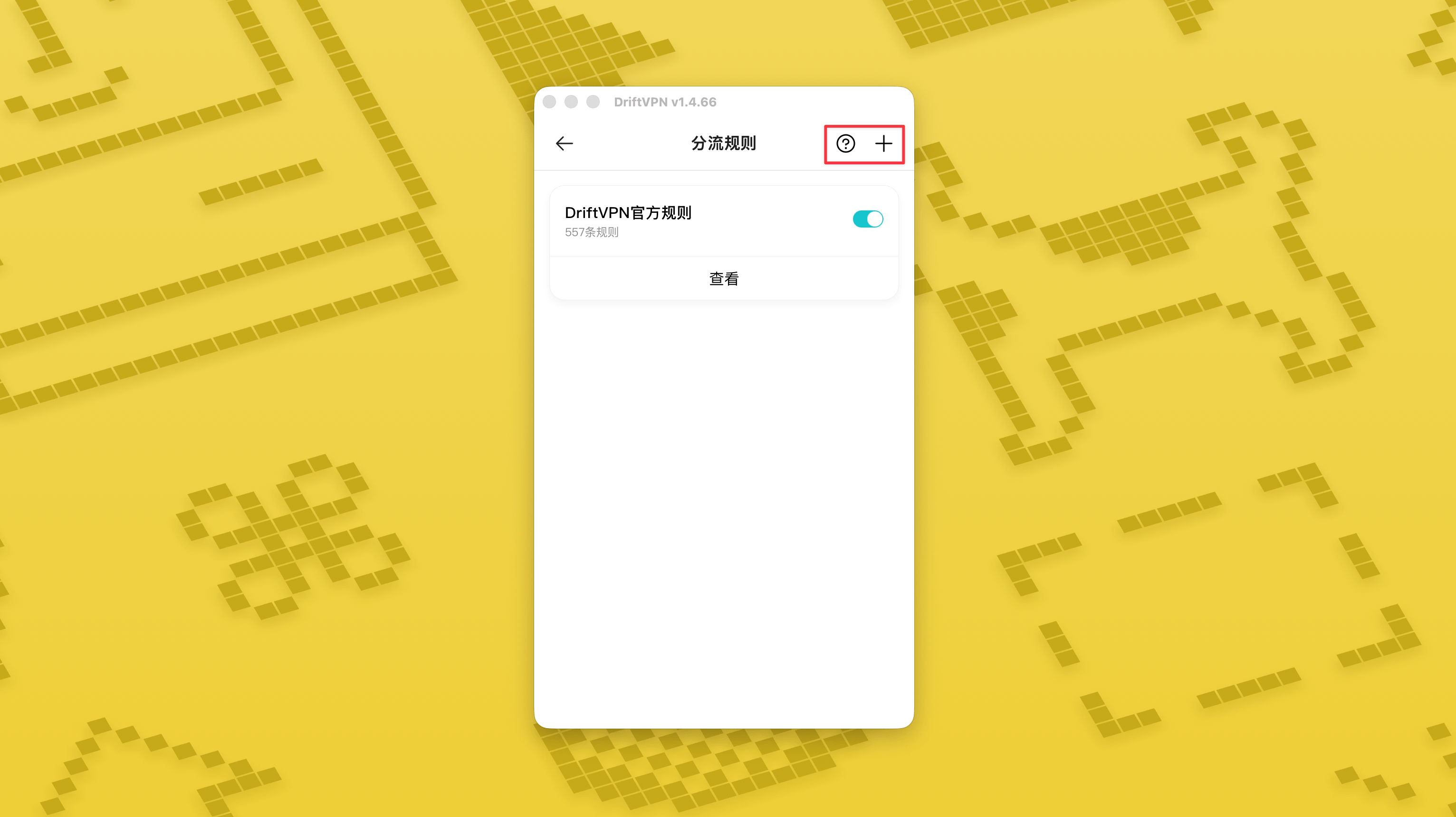
En la esquina superior derecha de la página «Reglas de enrutamiento», pulsa el botón «+» para añadir una regla nueva y el botón «?» para ver cómo redactar reglas. Cada grupo de reglas se puede activar o desactivar con su interruptor.
Si ya estás usando una herramienta proxy como Clash, puedes usar DriftVPN como proxy frontal y luego conectarte a tu proxy de IP residencial como salida final. Esto es adecuado para usuarios avanzados que necesitan "primero establecer una conexión a través de DriftVPN, luego acceder al sitio web de destino a través de una IP residencial".
El puerto proxy local predeterminado de DriftVPN es . Si ese puerto ya está en uso por otro programa, el cliente intentará automáticamente el siguiente puerto, como 、. Al configurar, por favor usa el puerto proxy local que se muestra actualmente en el cliente (verifica el número de puerto en la parte inferior de la página de configuración de VPN después de una conexión exitosa).
Usando un cliente Clash / Mihomo que admite el encadenamiento de proxies como ejemplo, puedes configurarlo de la siguiente manera:
proxies: - name: "轻舟VPN 前置代理" type: http server: 127.0.0.1 port: 9527 - name: "住宅IP落地" type: http server: your-residential-proxy.example.com port: 12345 username: "your-username" password: "your-password"proxy-groups: - name: "轻舟VPN + 住宅IP" type: relay proxies: - "轻舟VPN 前置代理" - "住宅IP落地" - name: "PROXY" type: select proxies: - "轻舟VPN + 住宅IP" - DIRECTrules: - MATCH,PROXY
Notas:
- La información del proxy de IP residencial anterior debe reemplazarse con la dirección real, el puerto, el nombre de usuario y la contraseña proporcionados por tu proveedor de servicios.
- Si el puerto proxy local actualmente mostrado en DriftVPN no es 9527, por favor cambia el puerto en la configuración al puerto real.
- El tipo de tu proxy de IP residencial debe completarse según el protocolo proporcionado por tu proveedor de servicios. Los valores comunes son http o socks5.
- El soporte para el encadenamiento de proxies varía según los diferentes clientes Clash. Si la configuración no funciona, confirma que el núcleo del cliente actual admite el grupo de proxy tipo relay.
- Este uso es adecuado para usuarios avanzados familiarizados con la configuración de Clash. Se recomienda a los usuarios regulares usar el Proxy Global integrado o el Enrutamiento Inteligente en el cliente DriftVPN.
Sí. Si el acceso es inestable, cambia a otra ruta e inténtalo de nuevo.
Puedes elegir una ruta según tu caso de uso actual:
- Para uso diario, si no te importa la latencia, cualquier ruta está bien.
- Si la latencia importa, elige un nodo que esté geográficamente más cerca de ti.
- Si necesitas acceder a sitios web o servicios con restricciones de región IP, como contenido de streaming exclusivo de una región, elige un nodo en el país o región correspondiente.
Solo ofrecemos soporte al cliente para los siguientes problemas:
- Problemas de inicio de sesión de la cuenta
- Problemas de pago / pedidos
- Servicio completamente no disponible, por ejemplo, imposibilidad de conectarse
Los siguientes casos están fuera del alcance del soporte al cliente:
- Problemas de experiencia subjetiva como retrasos, velocidad lenta o inestable
- Acceso lento a plataformas de terceros, como sitios web o apps
- Problemas causados por el entorno de red local, dispositivo, operador u otros factores del usuario
- Problemas causados por no seguir el tutorial oficial o por modificar la configuración por cuenta propia
- La calidad de red se ve muy afectada por el operador local y las rutas internacionales, por lo que la plataforma no puede garantizar la experiencia de acceso en todas las regiones ni horarios.
Si encuentras algún problema, puedes contactarnos a través de los siguientes métodos:
- Envía tu problema a través de la página 'Comentarios', y te responderemos por correo electrónico.Ir a Comentarios
- Envía un correo electrónico a nuestro correo de soporte:support@qz.run
- Contáctanos en Telegram:@driftvpn_offical