
सहायता केंद्र - सेटअप गाइड और समस्या निवारण
इंस्टॉलेशन
यह पुष्टि करने के लिए कि आपका Mac Intel या Apple Silicon प्रोसेसर का उपयोग करता है:
- स्क्रीन के ऊपरी बाएं कोने में Apple आइकन पर क्लिक करें
- "इस Mac के बारे में" चुनें
- पॉप-अप विंडो में, "चिप या प्रोसेसर" जानकारी की जांच करें। यदि Intel से शुरू होता है, तो यह Intel प्रोसेसर है, अन्यथा Apple Silicon है
- 1.
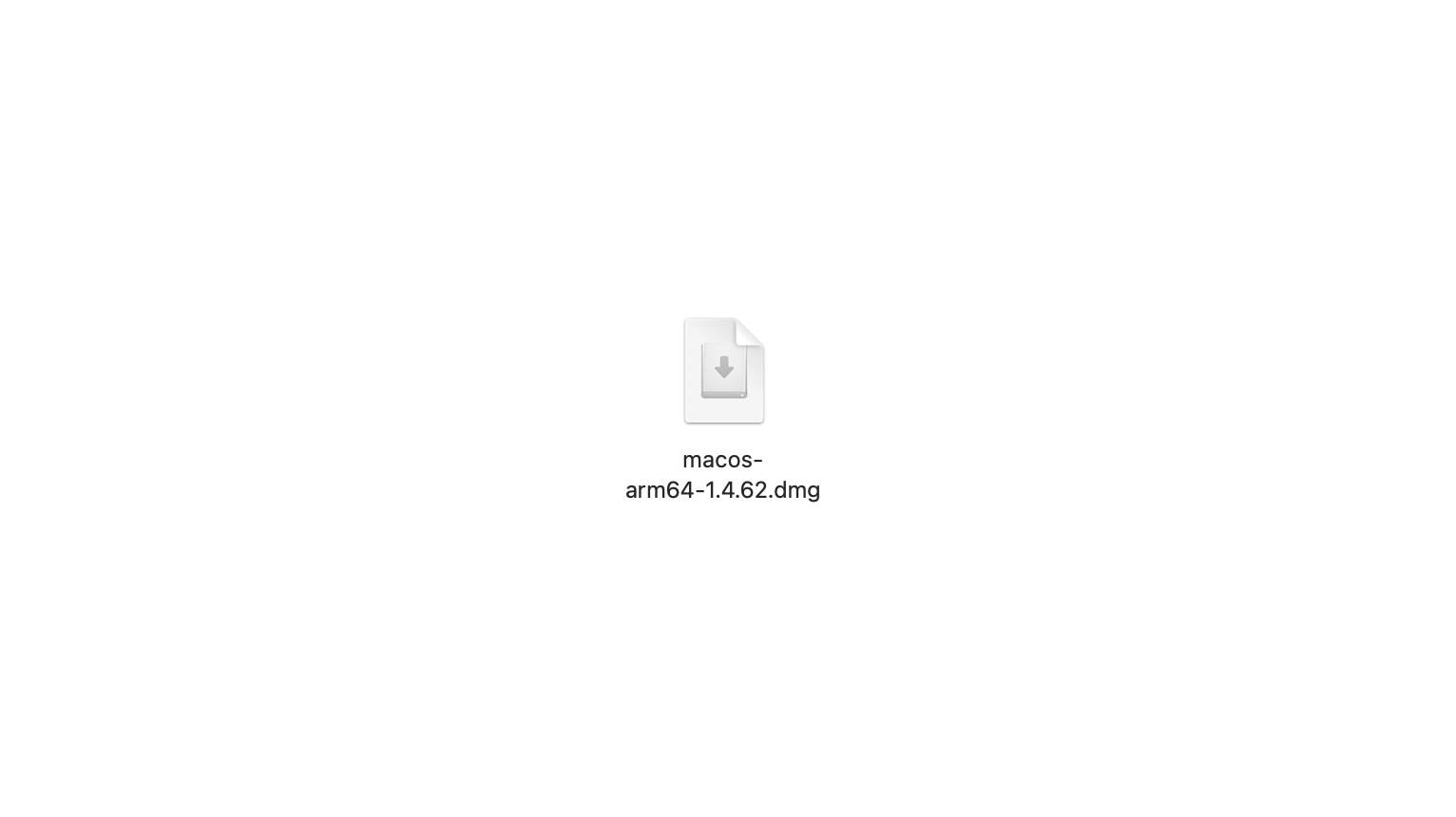
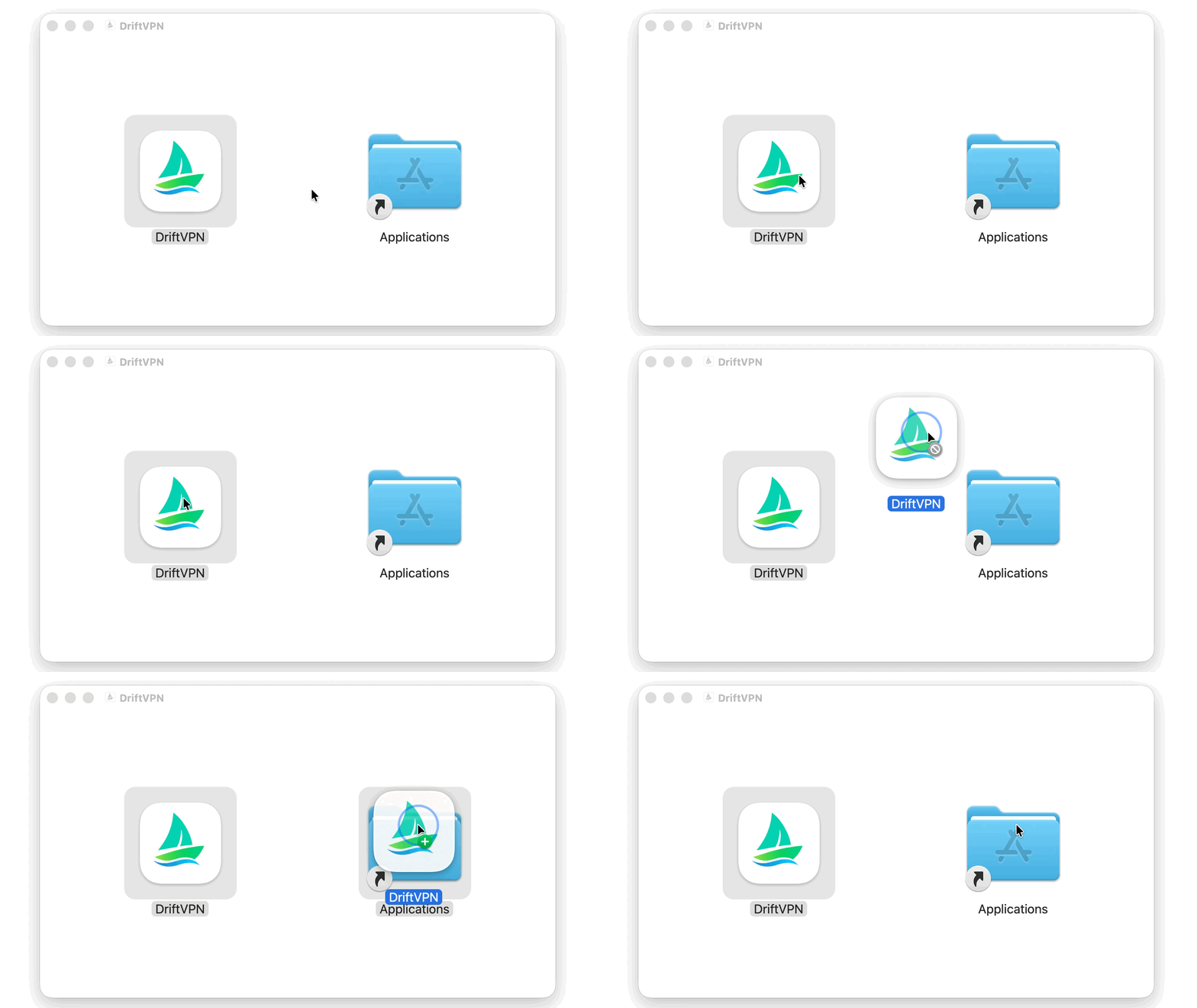
macOS इंस्टॉलर डाउनलोड करने के बाद, .dmg फ़ाइल खोलें और VPN को Applications में खींचें।
- 2.
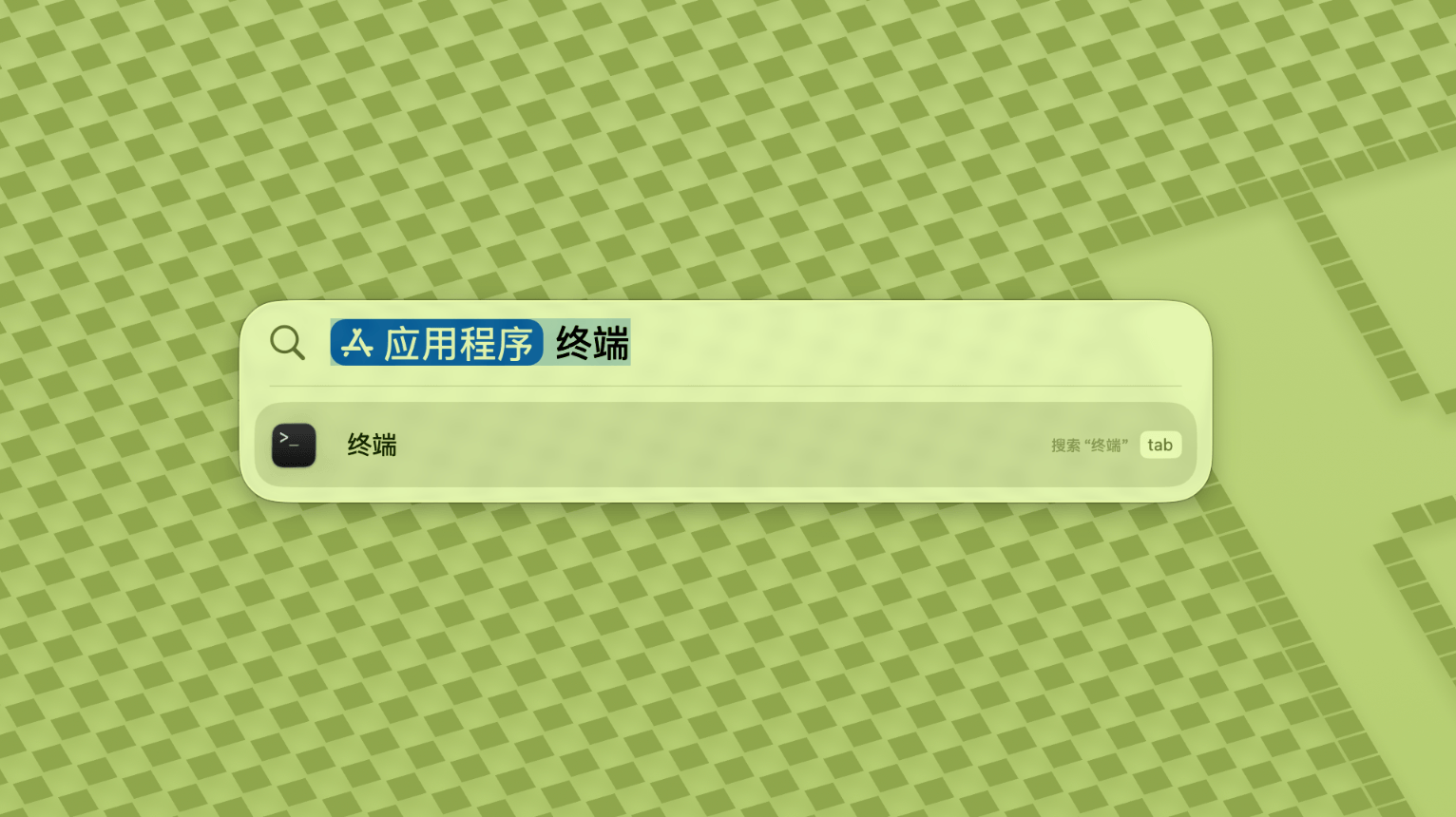
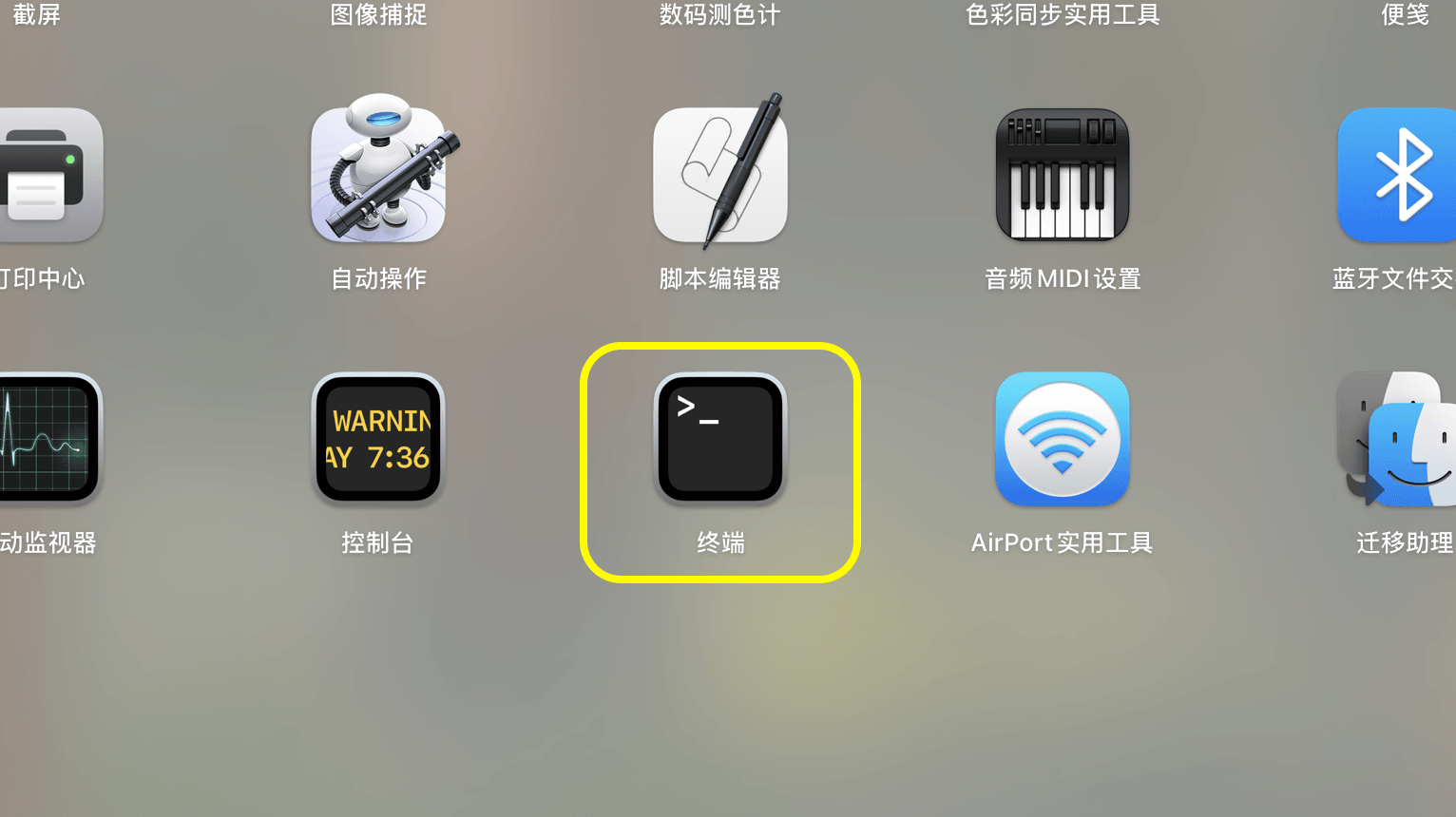
Launchpad या Spotlight खोलें, फिर Terminal खोजें और खोलें।
- 3.
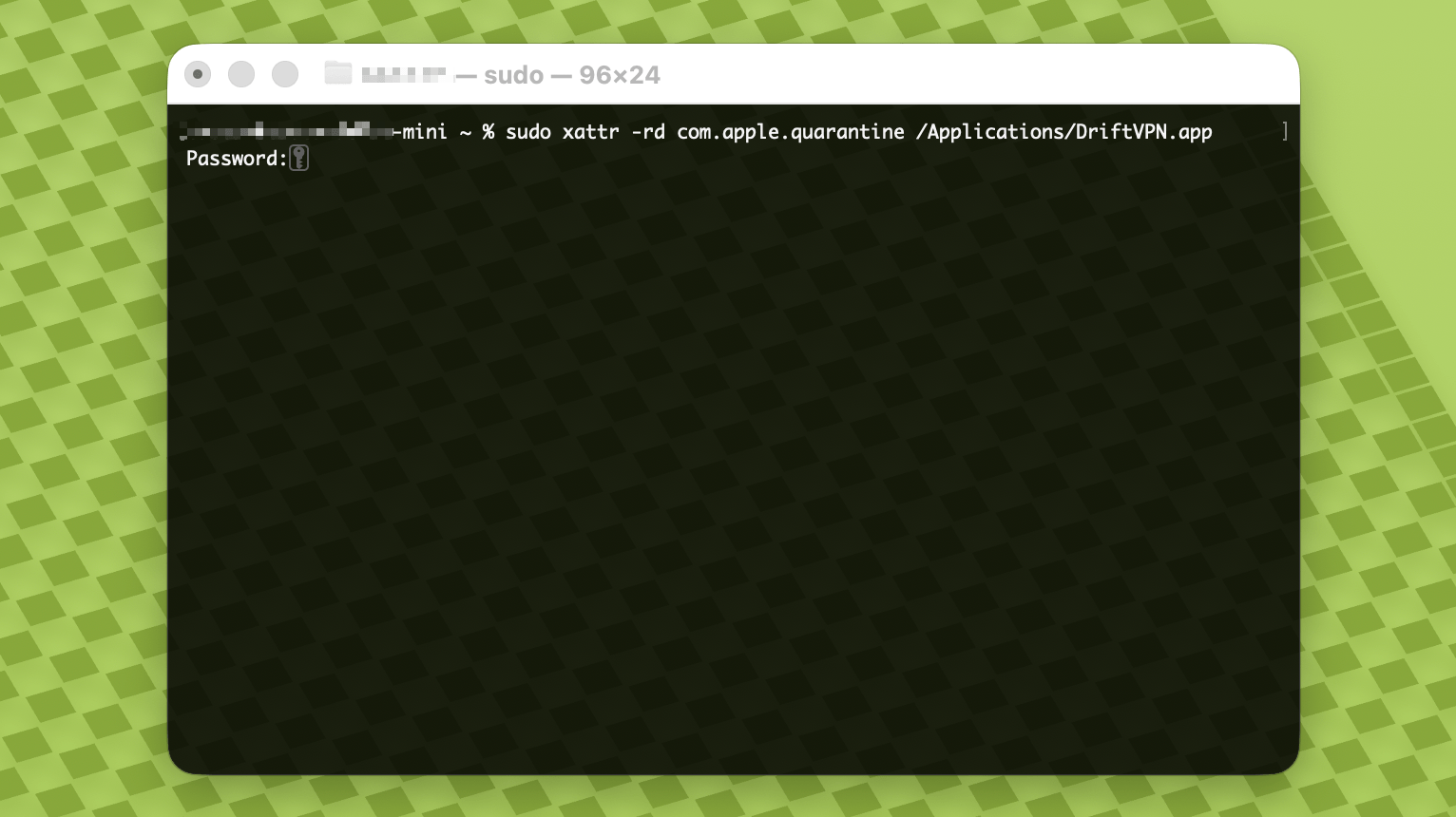
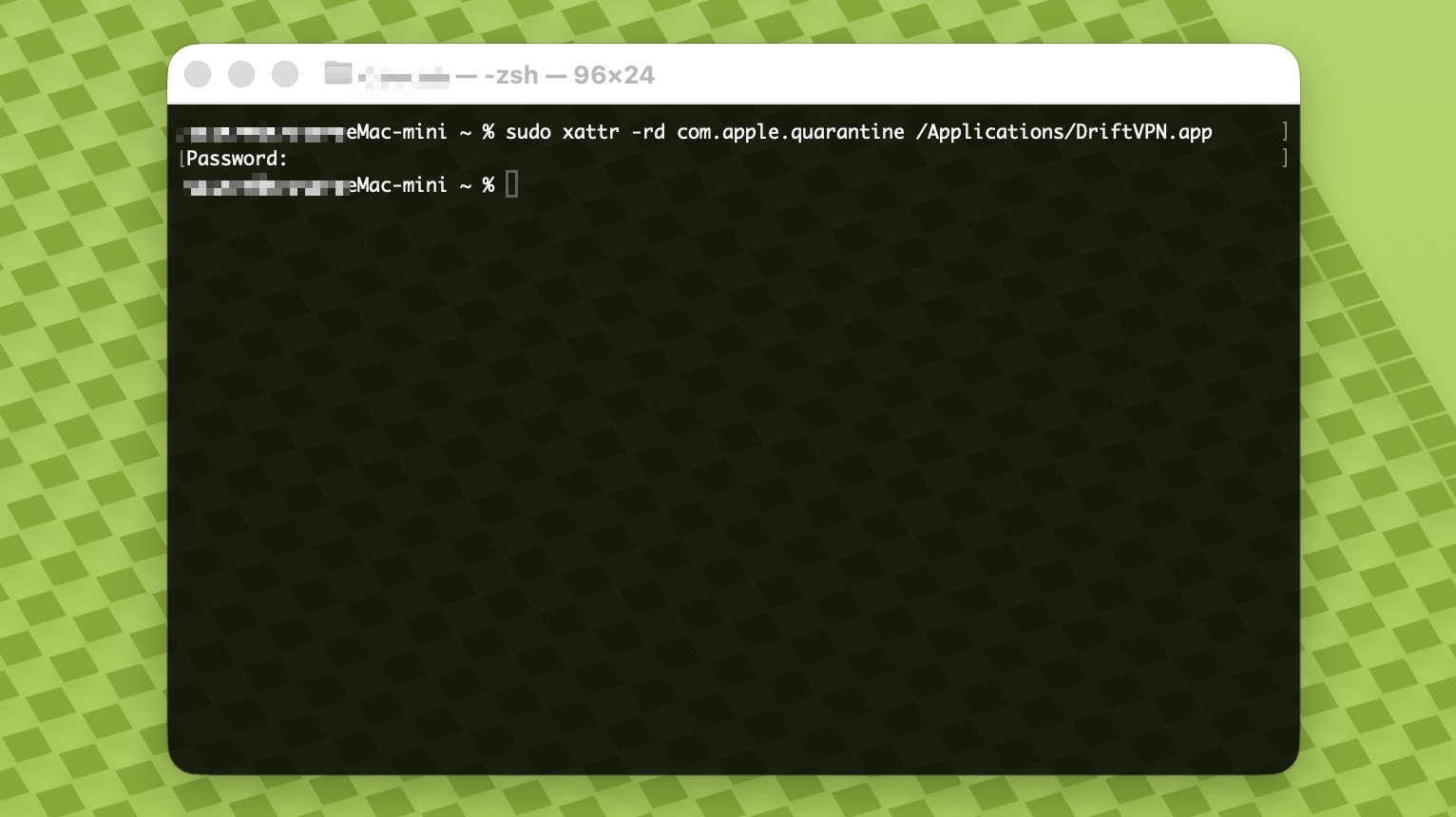
नीचे दिया गया कमांड Terminal में पेस्ट करें और Enter दबाएं। जब पूछा जाए तो Mac का लॉगिन पासवर्ड डालें; टाइप करते समय अक्षर दिखाई नहीं देंगे। पूरा होने पर फिर से Enter दबाएं।
sudo xattr -rd com.apple.quarantine /Applications/DriftVPN.app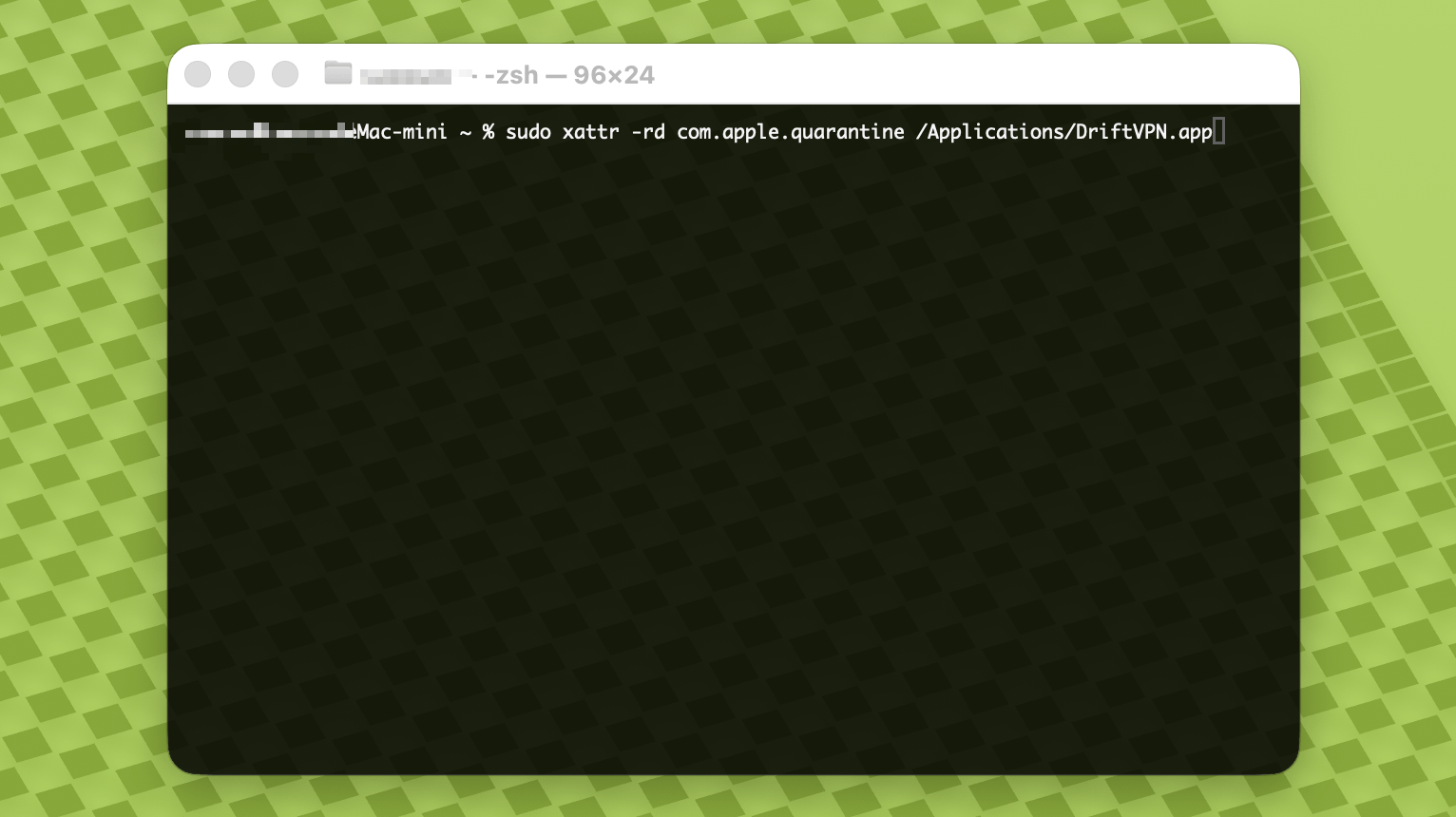
- 4.
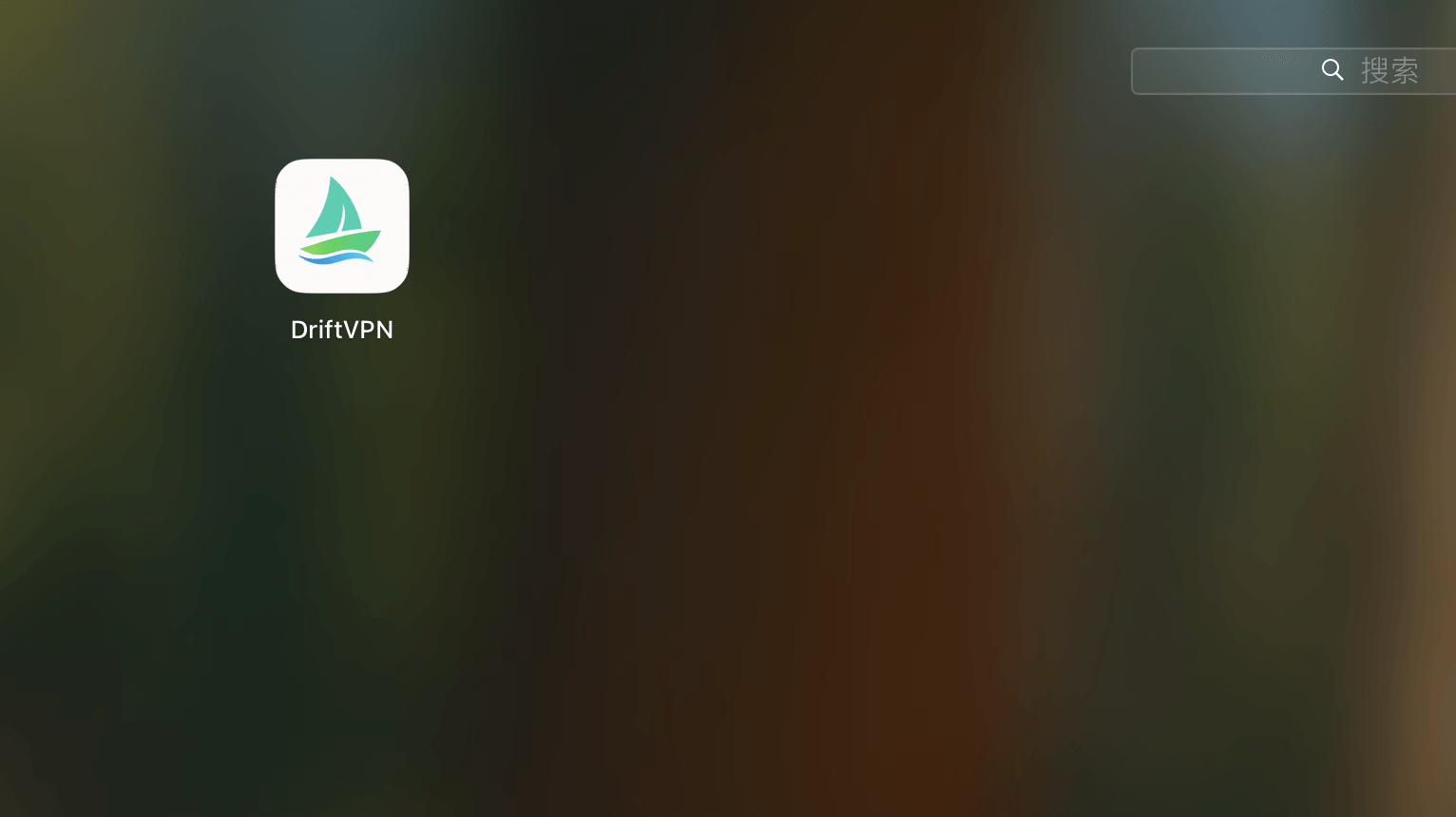
कमांड पूरा होने के बाद, VPN खोजें या Applications से खोलें।
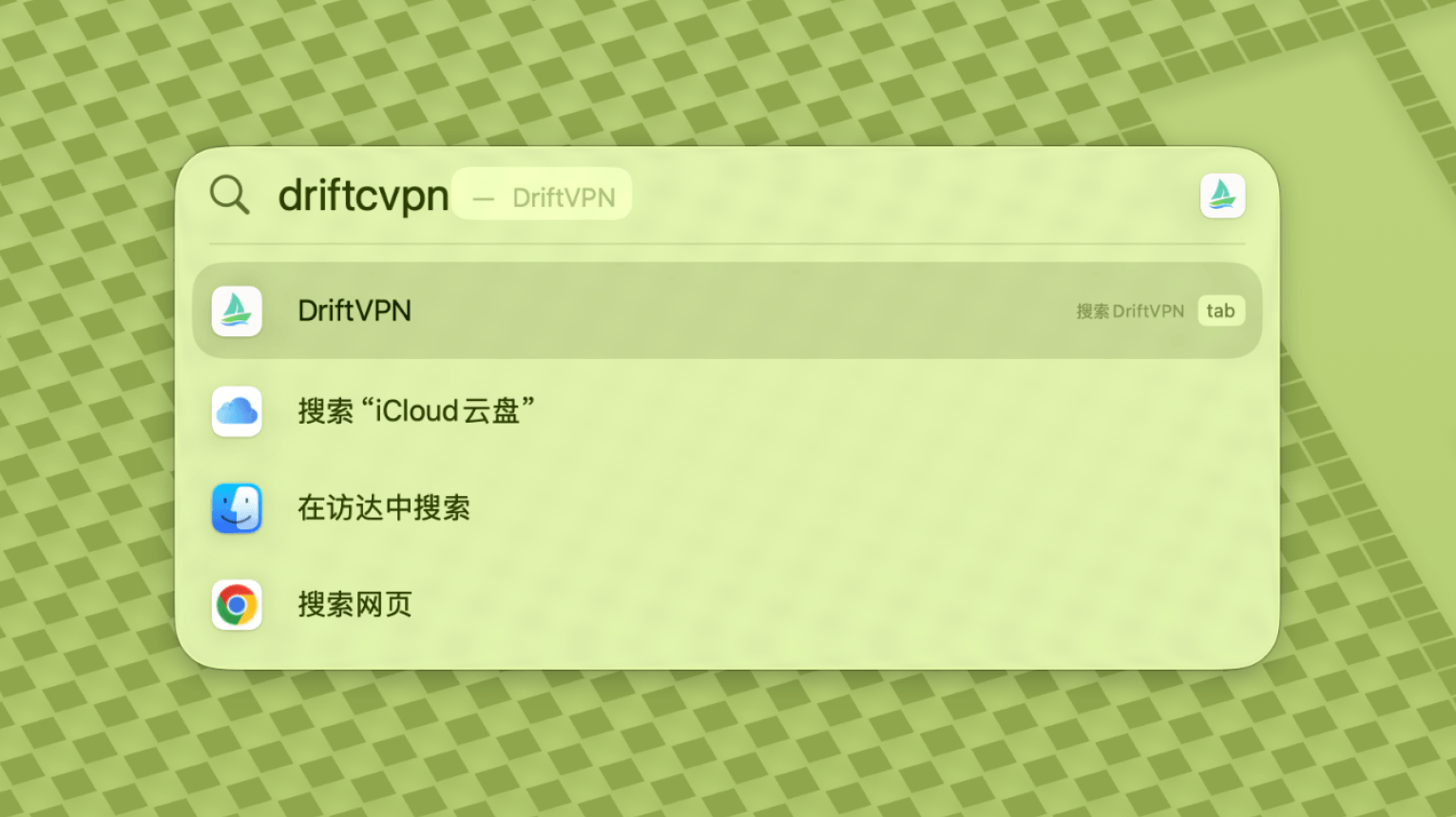
- 5.
यदि macOS अभी भी ऐप को ब्लॉक कर रहा है, तो System Settings → Privacy & Security पर जाएं और Security सेक्शन में Open Anyway पर क्लिक करें। यदि ऐप क्षतिग्रस्त बताए, तो नवीनतम इंस्टॉलर फिर से डाउनलोड करें और ऊपर दिया कमांड दोहराएं।
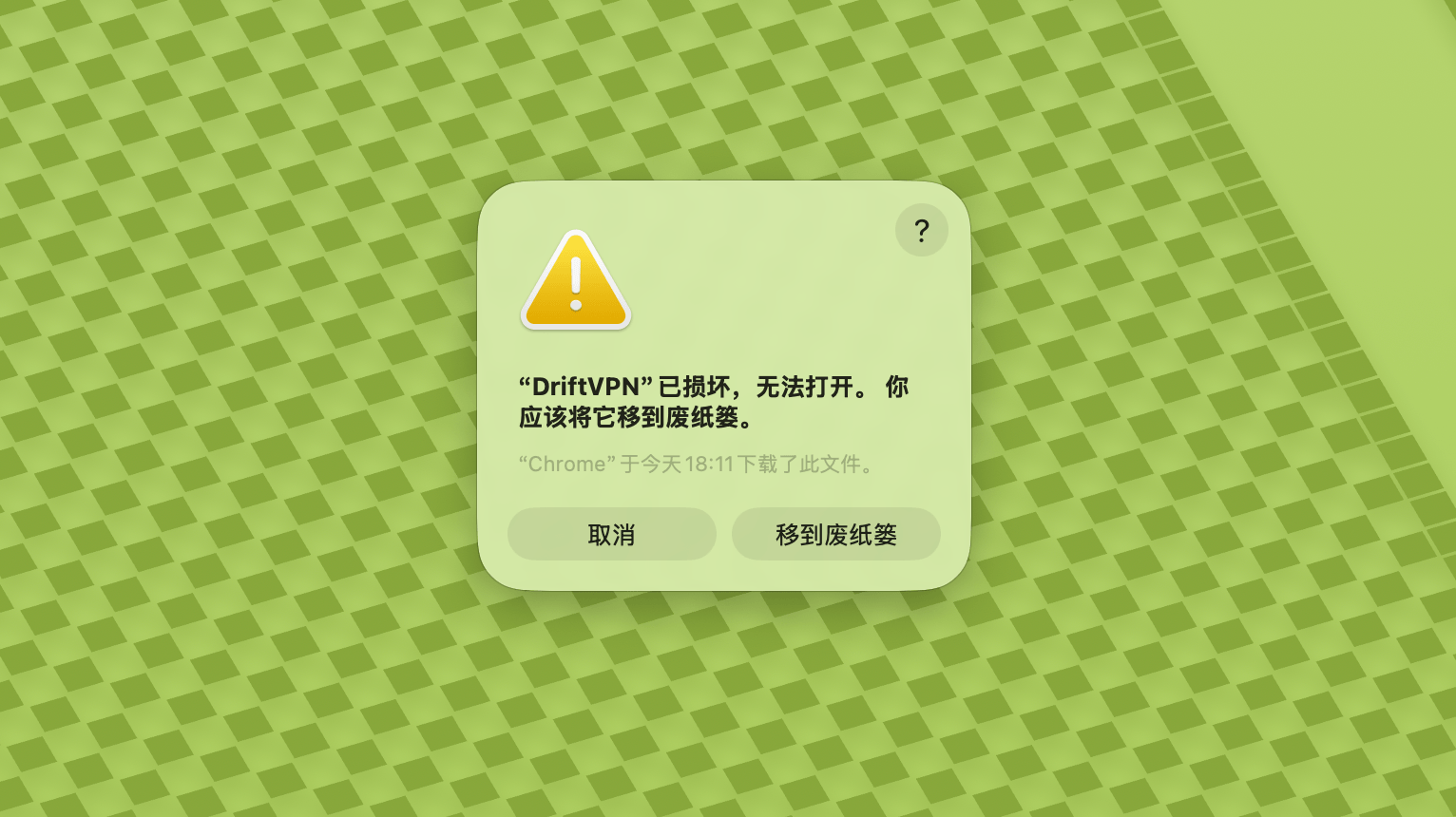
यदि आप macOS पर VPN नहीं खोल पा रहे हैं, तो System Settings → Privacy & Security पर जाएं, Security सेक्शन तक स्क्रोल करें और Open Anyway पर क्लिक करें।
यह पुष्टि करने के लिए कि आपका Windows कंप्यूटर x64, ARM64 या x86 (32-bit) प्रोसेसर का उपयोग करता है:
- सिस्टम जानकारी टूल खोलें। Win + R दबाएं, msinfo32 टाइप करें और फिर Enter दबाएं
- सिस्टम सारांश → सिस्टम प्रकार पर जाएं, आप सिस्टम आर्किटेक्चर जानकारी देखेंगे
त्रुटि संदेश: प्रॉक्सी एक्जीक्यूटेबल फाइल मौजूद नहीं है। या संदेश: फाइल में वायरस या संभावित अवांछित सॉफ्टवेयर शामिल है। समाधान:
विधि 1:
- 'सेटिंग्स' → 'प्राइवेसी और सुरक्षा' → 'Windows सुरक्षा केंद्र' → 'वायरस और खतरा सुरक्षा' खोलें
- 'सेटिंग्स प्रबंधित करें' पर क्लिक करें
- नीचे, अपवाद जोड़ें या हटाएं और Drift इंस्टॉलेशन फोल्डर को अपवादों में जोड़ें
विधि 2:
- 'सेटिंग्स' → 'प्राइवेसी और सुरक्षा' → 'Windows सुरक्षा केंद्र' → 'वायरस और खतरा सुरक्षा' खोलें
- 'सेटिंग्स प्रबंधित करें' पर क्लिक करें
- 'रीयल-टाइम सुरक्षा' बंद करें
यदि Windows पर लॉन्च होने के बाद ऐप कनेक्ट नहीं हो पाता है, तो आमतौर पर Windows Defender फ़ायरवॉल इसे ब्लॉक कर रहा है। समाधान:
विधि 1: कंट्रोल पैनल से अपवाद जोड़ें
- Win + S दबाएं और खोजें: कंट्रोल पैनल
- जाएं: सिस्टम और सुरक्षा → Windows Defender फ़ायरवॉल
- बाईं ओर क्लिक करें: Windows Defender फ़ायरवॉल के माध्यम से ऐप या फीचर को अनुमति दें
- ऊपरी दाएं कोने में क्लिक करें: सेटिंग्स बदलें
- क्लिक करें: दूसरे ऐप को अनुमति दें
- क्लिक करें: ब्राउज़ करें और अपनी .exe फ़ाइल चुनें (डिफ़ॉल्ट पथ: C:\Users\[user]\AppData\Local\VPN\QingZhou.exe)
- जोड़ने के बाद, चेक करें: प्राइवेट और पब्लिक (यदि बाहरी नेटवर्क एक्सेस की आवश्यकता है)
- क्लिक करें: ठीक है
विधि 2: उन्नत सुरक्षा के साथ Windows Defender फ़ायरवॉल में नए नियम बनाएं
- Win + S दबाएं, 'उन्नत सुरक्षा के साथ Windows Defender फ़ायरवॉल' खोजें और खोलें
- बाईं ओर 'इनबाउंड रूल्स' पर क्लिक करें → दाईं ओर 'न्यू रूल' पर क्लिक करें
- चुनें: प्रोग्राम → अगला
- 'यह प्रोग्राम पथ' चुनें, अपनी .exe फ़ाइल ब्राउज़ करें → अगला
- चुनें: कनेक्शन की अनुमति दें → अगला
- चेक करें: डोमेन, प्राइवेट, पब्लिक (आमतौर पर सभी) → अगला
- नाम दर्ज करें (जैसे DriftVpn Inbound) → समाप्त
- 'आउटबाउंड रूल्स' के लिए चरणों को दोहराएं (बाईं ओर 'आउटबाउंड रूल्स' चुनें; फ्लो वही है)
आप Android के लिए VPN इस प्रकार डाउनलोड और इंस्टॉल कर सकते हैं:
- आधिकारिक डाउनलोड पेज खोलें और Android चुनें।
- Android इंस्टॉलेशन पैकेज अपने फ़ोन या टैबलेट पर डाउनलोड करें।
- डाउनलोड किया गया APK फ़ाइल ब्राउज़र डाउनलोड या फ़ाइल मैनेजर से खोलें।
- यदि Android अज्ञात ऐप्स इंस्टॉल करने की अनुमति मांगे, तो वर्तमान ब्राउज़र या फ़ाइल मैनेजर के लिए अनुमति दें, फिर इंस्टॉलेशन जारी रखें।
कुछ ब्राउज़र या सिस्टम APK फ़ाइल को .zip एक्सटेंशन के साथ सहेज सकते हैं। इसे इस प्रकार संभालें:
- फ़ाइल को अनज़िप न करें।
- फ़ाइल मैनेजर खोलें और डाउनलोड की गई फ़ाइल का नाम बदलें, .zip एक्सटेंशन को .apk से बदलें।
- इंस्टॉल करने के लिए नाम बदली गई .apk फ़ाइल पर टैप करें।
- यदि नाम नहीं बदल सकते, तो फिर से डाउनलोड करें या APK डाउनलोड करने के लिए दूसरे ब्राउज़र का उपयोग करें।
नीति कारणों से, VPN चीन के App Store में उपलब्ध नहीं है। आप इसे इस प्रकार डाउनलोड कर सकते हैं:
- आपको चीन से बाहर का Apple ID चाहिए (जैसे US, जापान, हांगकांग आदि)
- App Store में चीन से बाहर के खाते पर स्विच करें
- इसे ढूंढने और डाउनलोड करने के लिए 'VPN' खोजें
- यदि आपके पास विदेशी Apple ID नहीं है, तो मुफ्त विदेशी Apple ID बनाने के ट्यूटोरियल के लिए ऑनलाइन खोज सकते हैं
खाता
यदि आप लॉगिन पासवर्ड भूल गए हैं, तो इन चरणों का पालन करके इसे रीसेट कर सकते हैं:
- लॉगिन पेज पर जाएं और 'पासवर्ड भूल गए?' पर क्लिक करें
- अपना पंजीकृत ईमेल पता दर्ज करें
- 6-अंकीय सत्यापन कोड के लिए ईमेल जांचें (5 मिनट के लिए वैध)
- सत्यापन कोड और अपना नया पासवर्ड दर्ज करके रीसेट पूरा करें
भुगतान समस्याएँ
फ़िलहाल ये भुगतान तरीके समर्थित हैं:
- Visa/Mastercard
यदि आपको अपनी सदस्यता रद्द करनी है, तो पहले यह पुष्टि करें कि आपने किस प्लेटफ़ॉर्म से सदस्यता ली थी। रद्द करने के चरण प्लेटफ़ॉर्म के अनुसार अलग होते हैं, और ऐप अनइंस्टॉल करने से सदस्यता स्वतः रद्द नहीं होती।
आधिकारिक वेबसाइट सदस्यता
चरण:
- आधिकारिक वेबसाइट पर जाएं और ऊपर दाईं ओर से अपने खाते में लॉगिन करें।
- लॉगिन के बाद ऊपर दाईं ओर "मेरा खाता – योजना और बिलिंग" पर क्लिक करें।
- अपनी योजना विवरण के पास प्रबंधित करें बटन पर क्लिक करें।
- Stripe पेज पर अपनी सदस्यता रद्द करें।
iOS
यदि आपने iPhone या iPad पर App Store से सदस्यता ली है, तो Apple के माध्यम से रद्द करें:
- अपने iPhone या iPad पर सेटिंग्स खोलें।
- ऊपर अपने Apple खाते के नाम पर टैप करें।
- सदस्यताएं टैप करें।
- VPN सदस्यता चुनें।
- सदस्यता रद्द करें टैप करें।
यदि आप iOS डिवाइस उपयोग कर रहे हैं लेकिन आधिकारिक वेबसाइट से सदस्यता ली है, तो ऊपर "आधिकारिक वेबसाइट सदस्यता" के चरणों का पालन करें।
Android
Google Play स्टोर के बाहर की Android सदस्यताएं Stripe के माध्यम से संसाधित होती हैं। रद्द करने के लिए ऊपर "आधिकारिक वेबसाइट सदस्यता" देखें।
Android – Google Play
यदि आपने Google Play से सदस्यता ली है, तो Google Play के माध्यम से रद्द करें:
- Google Play खोलें।
- ऊपर दाईं ओर प्रोफ़ाइल आइकन टैप करें।
- भुगतान और सदस्यताएं पर जाएं।
- सदस्यताएं टैप करें।
- VPN सदस्यता चुनें।
- सदस्यता रद्द करें टैप करें और निर्देशों का पालन करें।
Mac
Mac App Store के बाहर की सदस्यताएं Stripe के माध्यम से संसाधित होती हैं। रद्द करने के लिए ऊपर "आधिकारिक वेबसाइट सदस्यता" देखें।
Mac – App Store
यदि आपने Mac App Store से सदस्यता ली है, तो Apple के माध्यम से रद्द करें:
- अपने Mac पर App Store खोलें।
- अपने खाते के नाम पर क्लिक करें।
- खाता सेटिंग्स पर क्लिक करें।
- सदस्यताएं खोजें और प्रबंधित करें पर क्लिक करें।
- VPN सदस्यता चुनें।
- सदस्यता रद्द करें पर क्लिक करें।
Windows
रद्द करने के लिए ऊपर "आधिकारिक वेबसाइट सदस्यता" देखें।
उपयोग
आप इन चरणों से VPN ट्रायल शुरू कर सकते हैं:
- आधिकारिक वेबसाइट या किसी भी क्लाइंट पर खाता बनाएं
- किसी भी क्लाइंट में अपने खाते में साइन इन करें
- सेवा का उपयोग शुरू करने के लिए होम पेज पर स्विच बटन दबाएं
यदि आपके पास एक्टिवेशन कोड है, तो लॉगिन के बाद इसे रिडीम कर सकते हैं:
- वेबसाइट या क्लाइंट में अपने खाते में लॉग इन करें।
- ऊपर दाईं ओर My Account पर क्लिक करें, फिर ड्रॉपडाउन मेनू से Redeem activation code चुनें।
- एक्टिवेशन कोड दर्ज करें और रिडेम्पशन की पुष्टि करें।
- रिडेम्पशन सफल होने के बाद, संबंधित पैकेज या लाभ आपके खाते में स्वचालित रूप से जुड़ जाएगा।
- यदि कोई सफलता संदेश नहीं आता, तो एक्टिवेशन कोड पहले ही उपयोग हो चुका है।
- एक्टिवेशन के बाद, पैकेज या लाभ के प्रभावी होने के लिए ऐप पुनः शुरू करें।
VPN वर्तमान में निम्नलिखित प्लेटफॉर्म का समर्थन करता है:
- Android (फ़ोन और टैबलेट)
- iOS (iPhone और iPad, चीन से बाहर का App Store आवश्यक)
- macOS (Intel और Apple Silicon दोनों चिप्स का समर्थन)
- Windows (x64 आर्किटेक्चर का समर्थन)
एक खाता अधिकतम 3 डिवाइस को एक साथ ऑनलाइन सपोर्ट करता है। आप अधिक डिवाइस पर क्लाइंट इंस्टॉल करके उसी खाते से साइन इन कर सकते हैं; सीमा केवल एक ही समय में जुड़े डिवाइसों की संख्या पर लागू होती है। सीमा पार होने पर सबसे पहले कनेक्ट हुआ डिवाइस अपने आप डिस्कनेक्ट हो जाएगा। क्लाइंट अभी एक क्लिक में दूसरे डिवाइस डिस्कनेक्ट करने या उन्हें लॉग आउट कराने की सुविधा नहीं देता। ऑनलाइन स्लॉट खाली करने के लिए उस डिवाइस पर मैन्युअल रूप से डिस्कनेक्ट या लॉग आउट करें।
ये नियंत्रित करते हैं कि कौन सा ट्रैफिक VPN से गुजरे:
- Global Proxy अधिकांश नेटवर्क ट्रैफिक VPN के माध्यम से भेजता है। इसका उपयोग तब करें जब आप चाहते हों कि सभी ऐप्स और वेबसाइट प्रॉक्सी कनेक्शन का उपयोग करें।
- Smart Routing केवल उस ट्रैफिक को प्रॉक्सी करता है जिसे त्वरण या एक्सेस ऑप्टिमाइज़ेशन की आवश्यकता है। स्थानीय और सीधे पहुंच योग्य ट्रैफिक मूल नेटवर्क पर रहता है, जो आमतौर पर रोजमर्रा के उपयोग के लिए बेहतर होता है।
- बिल्ट-इन VPN नियम अधिकांश जरूरतों को पूरा करते हैं, और आप अपने स्वयं के प्रॉक्सी नियम भी जोड़ सकते हैं।
- 1.
सेटिंग्स पेज में स्मार्ट रूटिंग मोड का स्विच ऑन करें, फिर उसे चालू करने के लिए «अभी स्विच करें» पर टैप करें।
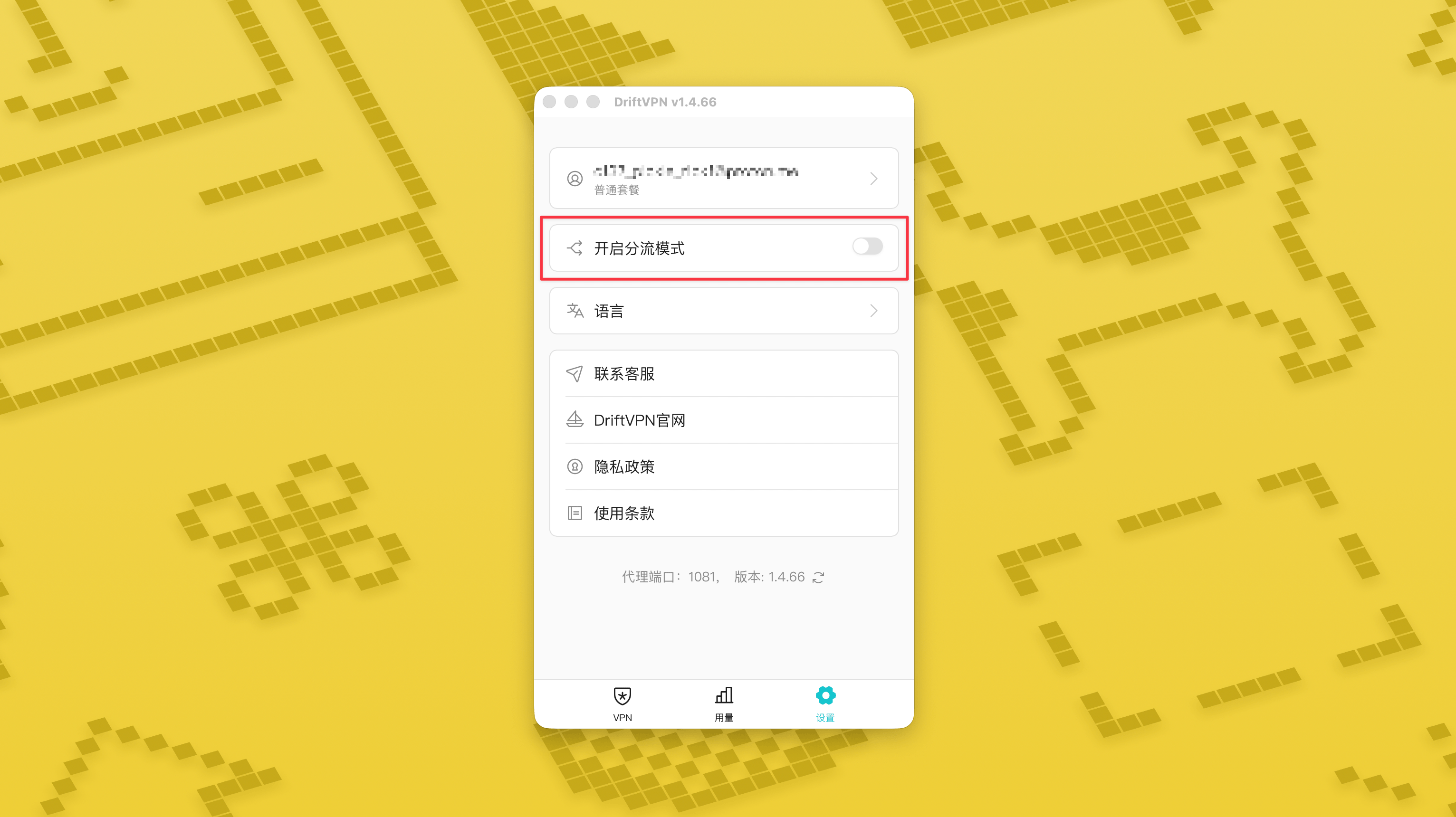
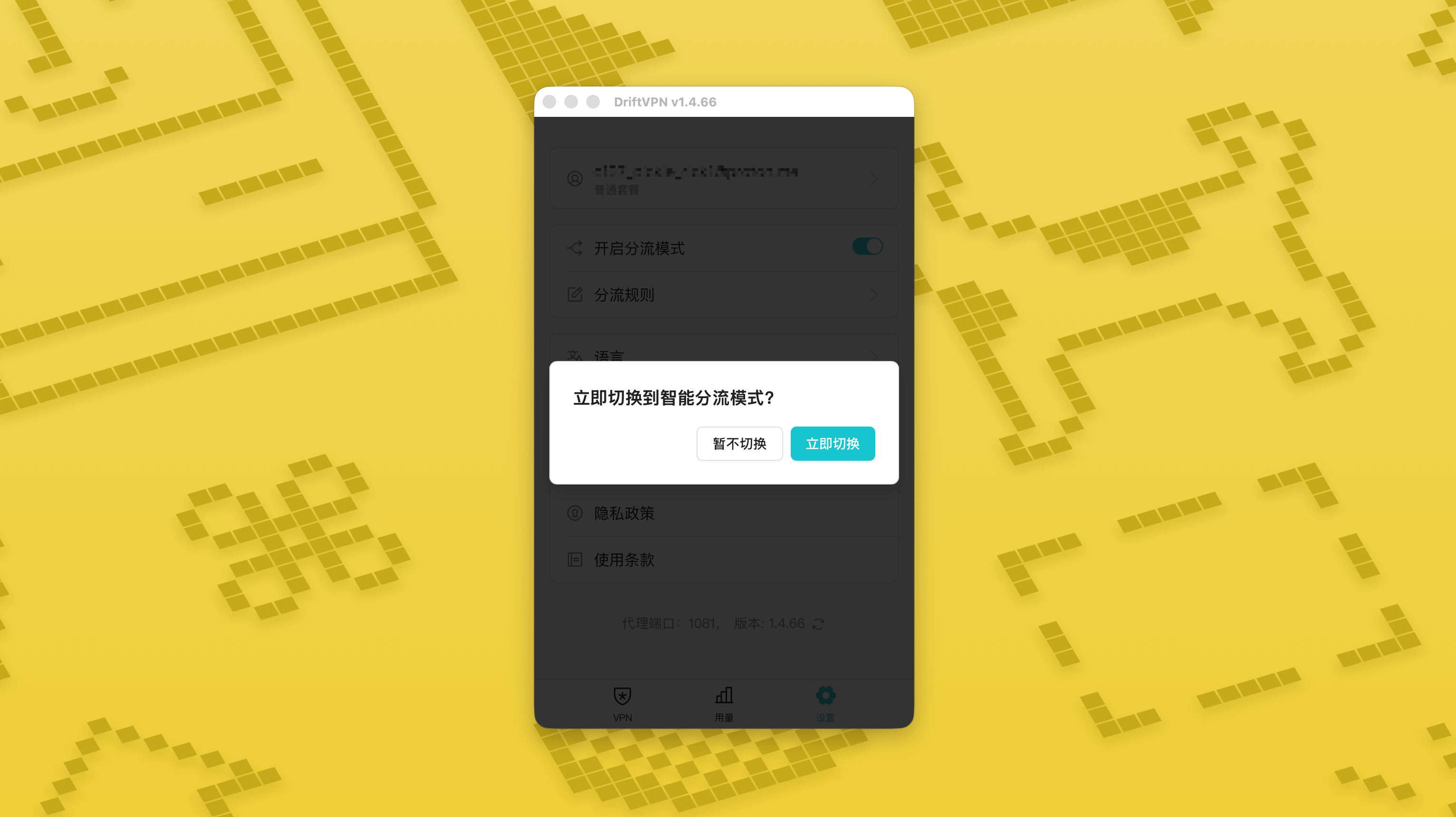
- 2.
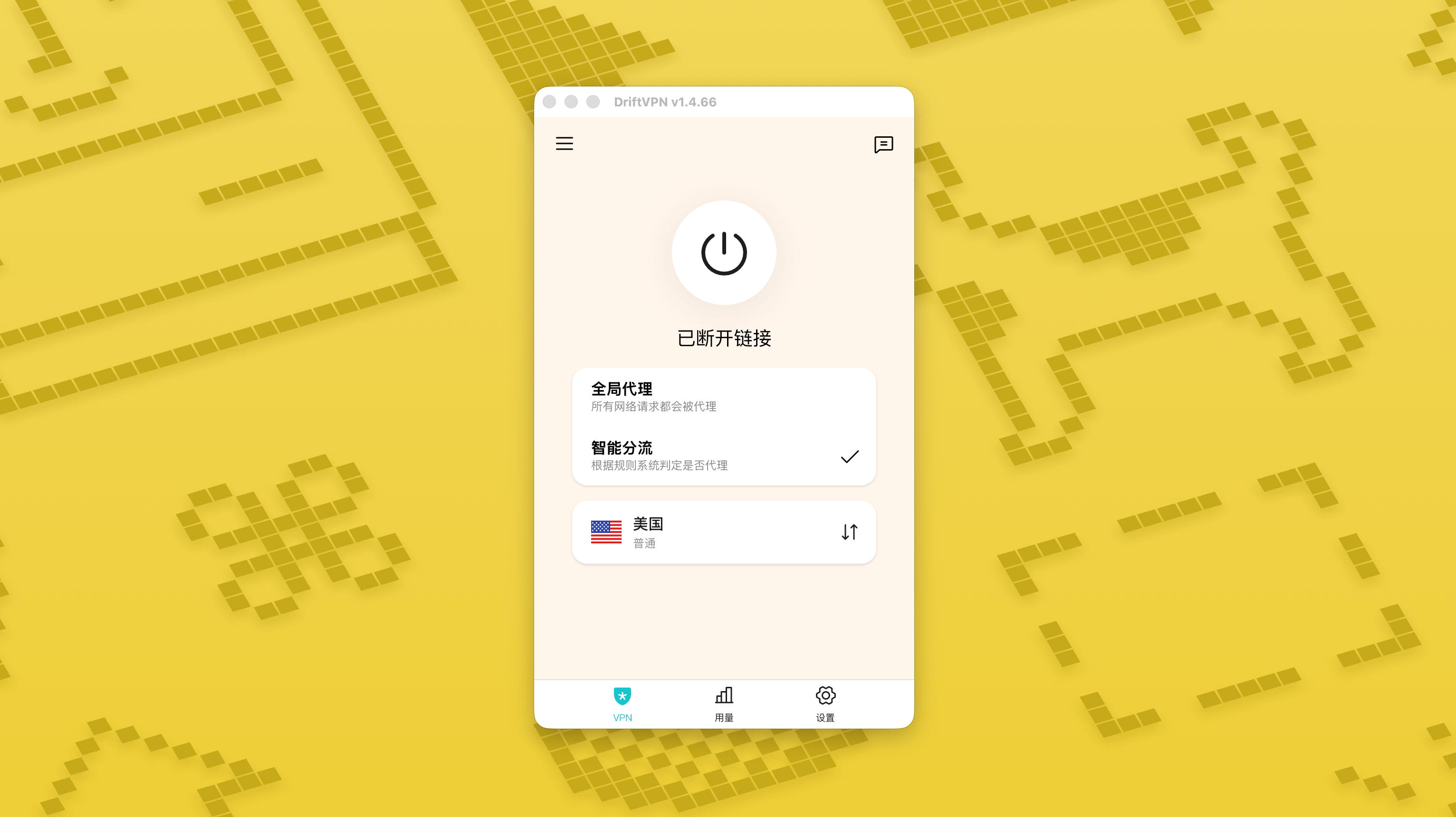
चालू होने के बाद, आप होम पेज पर «ग्लोबल प्रॉक्सी» और «स्मार्ट रूटिंग» के बीच स्विच कर सकते हैं।
- 3.
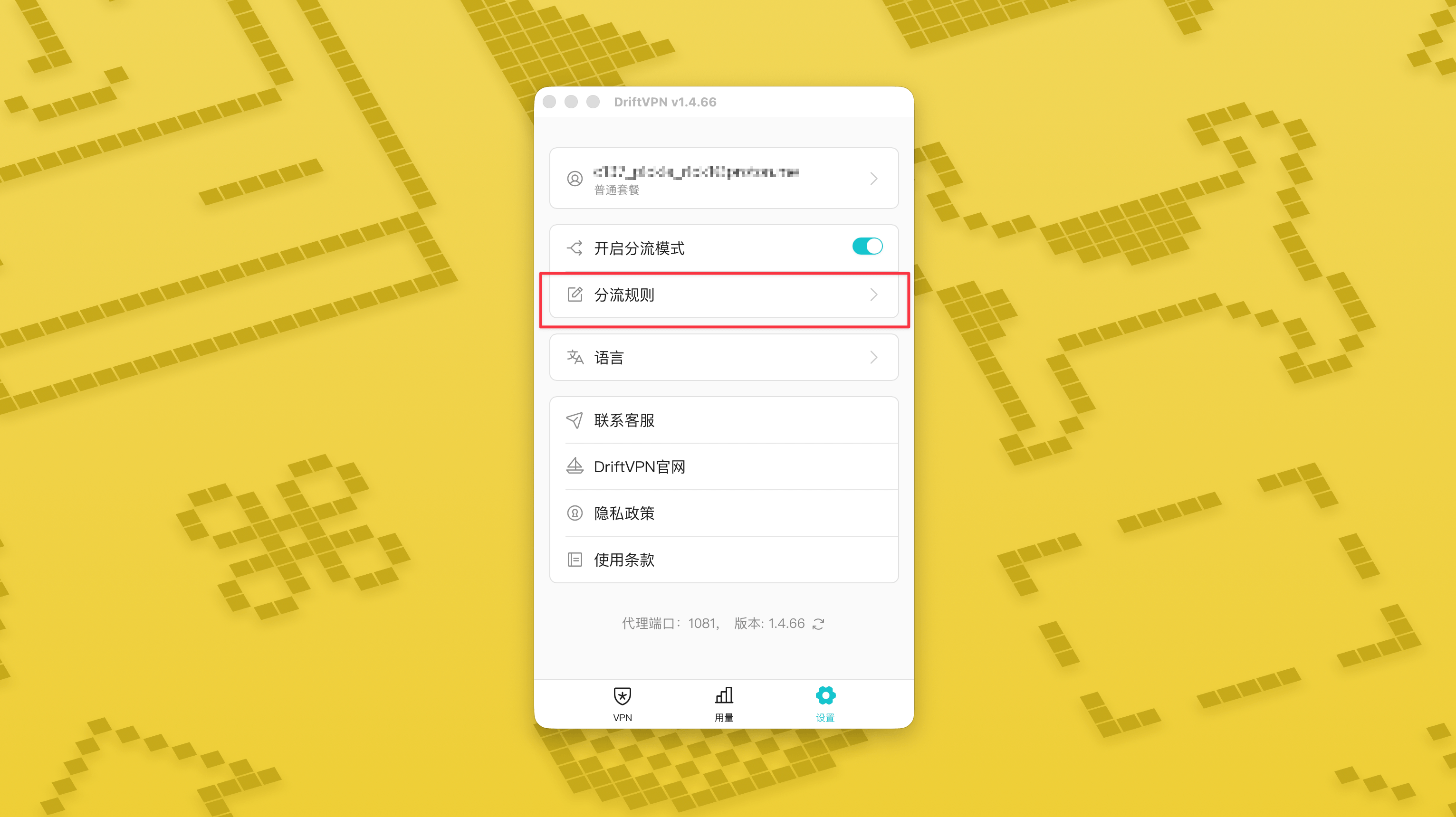
स्मार्ट रूटिंग मोड चालू करने के बाद, सेटिंग्स में «रूटिंग नियम» पेज दिखाई देगा।
- 4.
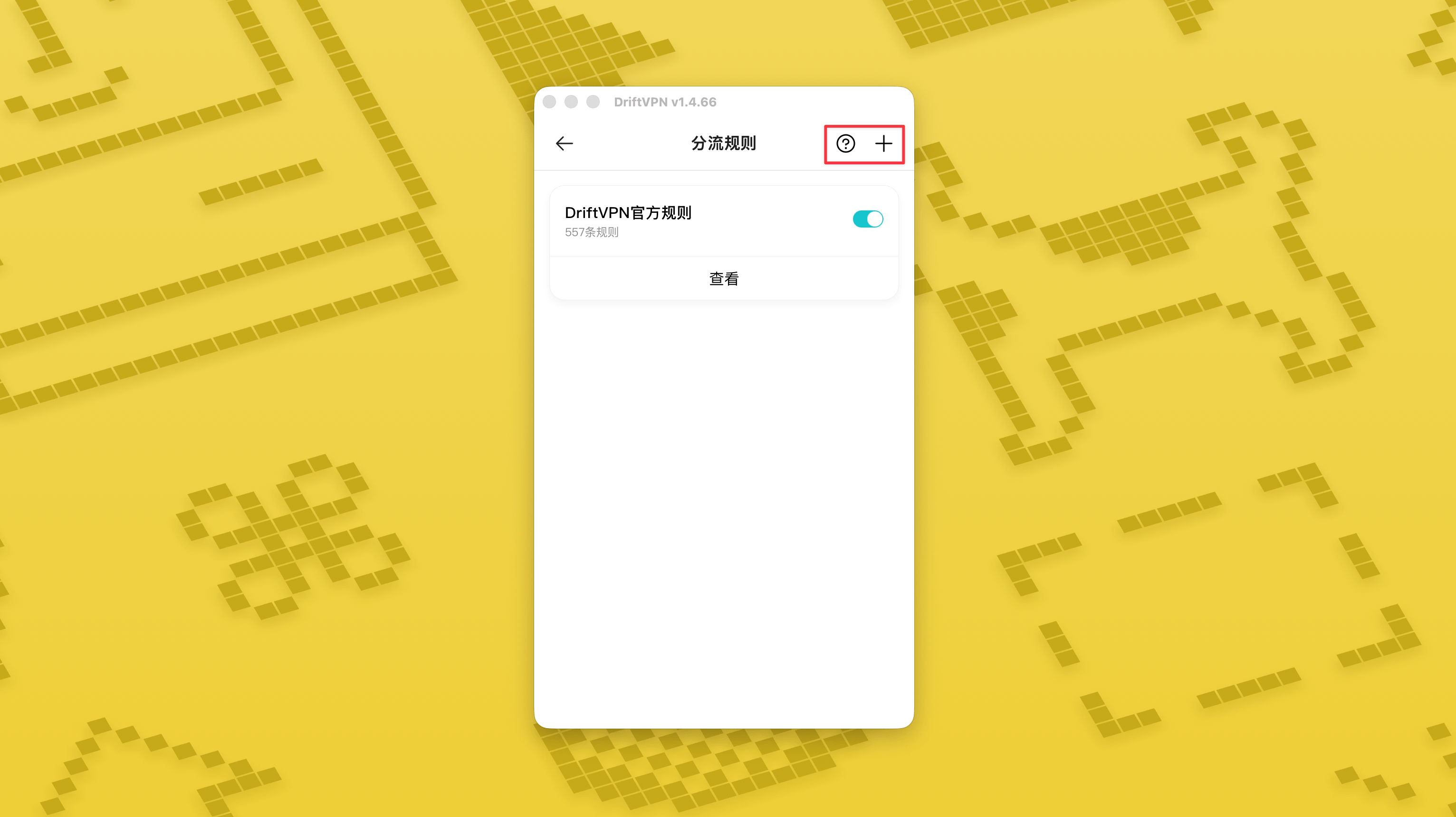
«रूटिंग नियम» पेज के ऊपर दाईं ओर «+» बटन दबाकर नया नियम जोड़ें, और «?» बटन दबाकर देखें कि नियम कैसे लिखें। हर नियम समूह को उसके स्विच से चालू या बंद किया जा सकता है।
यदि आप पहले से Clash जैसे प्रॉक्सी टूल का उपयोग कर रहे हैं, तो DriftVPN को फ्रंट-एंड प्रॉक्सी के रूप में उपयोग कर सकते हैं और फिर अंतिम एग्जिट के रूप में अपने रेजिडेंशियल IP प्रॉक्सी से कनेक्ट कर सकते हैं। यह उन एडवांस्ड उपयोगकर्ताओं के लिए उपयुक्त है जिन्हें "पहले DriftVPN के माध्यम से कनेक्शन स्थापित करना है, फिर रेजिडेंशियल IP के माध्यम से लक्ष्य वेबसाइट तक पहुंचना है"।
DriftVPN का डिफ़ॉल्ट लोकल प्रॉक्सी पोर्ट है । यदि वह पोर्ट किसी अन्य प्रोग्राम द्वारा पहले से उपयोग में है, तो क्लाइंट स्वचालित रूप से अगला पोर्ट आज़माएगा, जैसे 、। कॉन्फ़िगर करते समय, कृपया क्लाइंट में वर्तमान में दिखाए गए लोकल प्रॉक्सी पोर्ट का उपयोग करें (सफल कनेक्शन के बाद VPN सेटिंग्स पेज के नीचे पोर्ट नंबर जांचें)।
प्रॉक्सी चेनिंग का समर्थन करने वाले Clash / Mihomo क्लाइंट का उदाहरण लेते हुए, आप इसे इस प्रकार कॉन्फ़िगर कर सकते हैं:
proxies: - name: "轻舟VPN 前置代理" type: http server: 127.0.0.1 port: 9527 - name: "住宅IP落地" type: http server: your-residential-proxy.example.com port: 12345 username: "your-username" password: "your-password"proxy-groups: - name: "轻舟VPN + 住宅IP" type: relay proxies: - "轻舟VPN 前置代理" - "住宅IP落地" - name: "PROXY" type: select proxies: - "轻舟VPN + 住宅IP" - DIRECTrules: - MATCH,PROXY
नोट्स:
- ऊपर दी गई रेजिडेंशियल IP प्रॉक्सी जानकारी को आपके सेवा प्रदाता द्वारा दिए गए वास्तविक पते, पोर्ट, उपयोगकर्ता नाम और पासवर्ड से बदलना होगा।
- यदि DriftVPN में वर्तमान में दिखाया गया लोकल प्रॉक्सी पोर्ट 9527 नहीं है, तो कृपया कॉन्फ़िगरेशन में पोर्ट को वास्तविक पोर्ट में बदलें।
- आपके रेजिडेंशियल IP प्रॉक्सी का प्रकार आपके सेवा प्रदाता द्वारा प्रदान किए गए प्रोटोकॉल के अनुसार भरना होगा। सामान्य मान http या socks5 हैं।
- अलग-अलग Clash क्लाइंट में प्रॉक्सी चेनिंग का समर्थन अलग-अलग होता है। यदि कॉन्फ़िगरेशन काम न करे, तो पुष्टि करें कि वर्तमान क्लाइंट कोर relay प्रकार के प्रॉक्सी ग्रुप का समर्थन करता है।
- यह उपयोग Clash कॉन्फ़िगरेशन से परिचित एडवांस्ड उपयोगकर्ताओं के लिए उपयुक्त है। सामान्य उपयोगकर्ताओं को DriftVPN क्लाइंट में बिल्ट-इन Global Proxy या Smart Routing का उपयोग करने की सलाह दी जाती है।
हां। यदि एक्सेस अस्थिर हो, तो दूसरे रूट पर स्विच करें और पुनः प्रयास करें।
आप अपने वर्तमान उपयोग मामले के आधार पर रूट चुन सकते हैं:
- रोजमर्रा के उपयोग के लिए, यदि लेटेंसी की परवाह नहीं है, तो कोई भी रूट ठीक है।
- यदि लेटेंसी महत्वपूर्ण है, तो भौगोलिक रूप से आपके करीब का नोड चुनें।
- यदि आपको IP क्षेत्र प्रतिबंधों वाले वेबसाइटों या सेवाओं तक पहुंचना है, जैसे क्षेत्र-विशेष स्ट्रीमिंग सामग्री, तो संबंधित देश या क्षेत्र में नोड चुनें।
हम केवल निम्न समस्याओं के लिए ग्राहक सहायता प्रदान करते हैं:
- खाते में लॉगिन की समस्या
- भुगतान / ऑर्डर से जुड़ी समस्या
- सेवा पूरी तरह अनुपलब्ध होना, जैसे कनेक्ट न हो पाना
निम्न स्थितियां ग्राहक सहायता के दायरे में नहीं आतीं:
- लैग, धीमी गति या अस्थिर गति जैसी व्यक्तिपरक अनुभव समस्याएं
- तृतीय-पक्ष प्लेटफॉर्म, जैसे वेबसाइट या ऐप, तक धीमी पहुंच
- उपयोगकर्ता के स्थानीय नेटवर्क वातावरण, डिवाइस, कैरियर या समान कारणों से उत्पन्न समस्याएं
- आधिकारिक ट्यूटोरियल का पालन न करने या स्वयं सेटिंग बदलने से उत्पन्न समस्याएं
- नेटवर्क गुणवत्ता उपयोगकर्ता के स्थानीय कैरियर और अंतरराष्ट्रीय रूट से बहुत प्रभावित होती है, इसलिए यह प्लेटफॉर्म सभी क्षेत्रों और समयों में पहुंच अनुभव की गारंटी नहीं दे सकता।
यदि आपको कोई समस्या आती है, तो आप निम्न तरीकों से हमसे संपर्क कर सकते हैं:
- 'फ़ीडबैक' पेज के माध्यम से अपनी समस्या सबमिट करें, और हम ईमेल द्वारा उत्तर देंगे।फ़ीडबैक पर जाएं
- हमारे सहायता ईमेल पर ईमेल भेजें:support@qz.run
- टेलीग्राम पर हमसे संपर्क करें:@driftvpn_offical