
Yardım Merkezi - Kurulum Rehberleri ve Sorun Giderme
Kurulum
Mac'inizin Intel veya Apple Silicon işlemci kullanıp kullanmadığını doğrulamak için:
- Ekranın sol üst köşesindeki Apple simgesine tıklayın
- "Bu Mac Hakkında"yı seçin
- Açılan pencerede "Chip veya İşlemci" bilgilerini kontrol edin. Intel ile başlıyorsa Intel işlemci, aksi takdirde Apple Silicon işlemcidir
- 1.
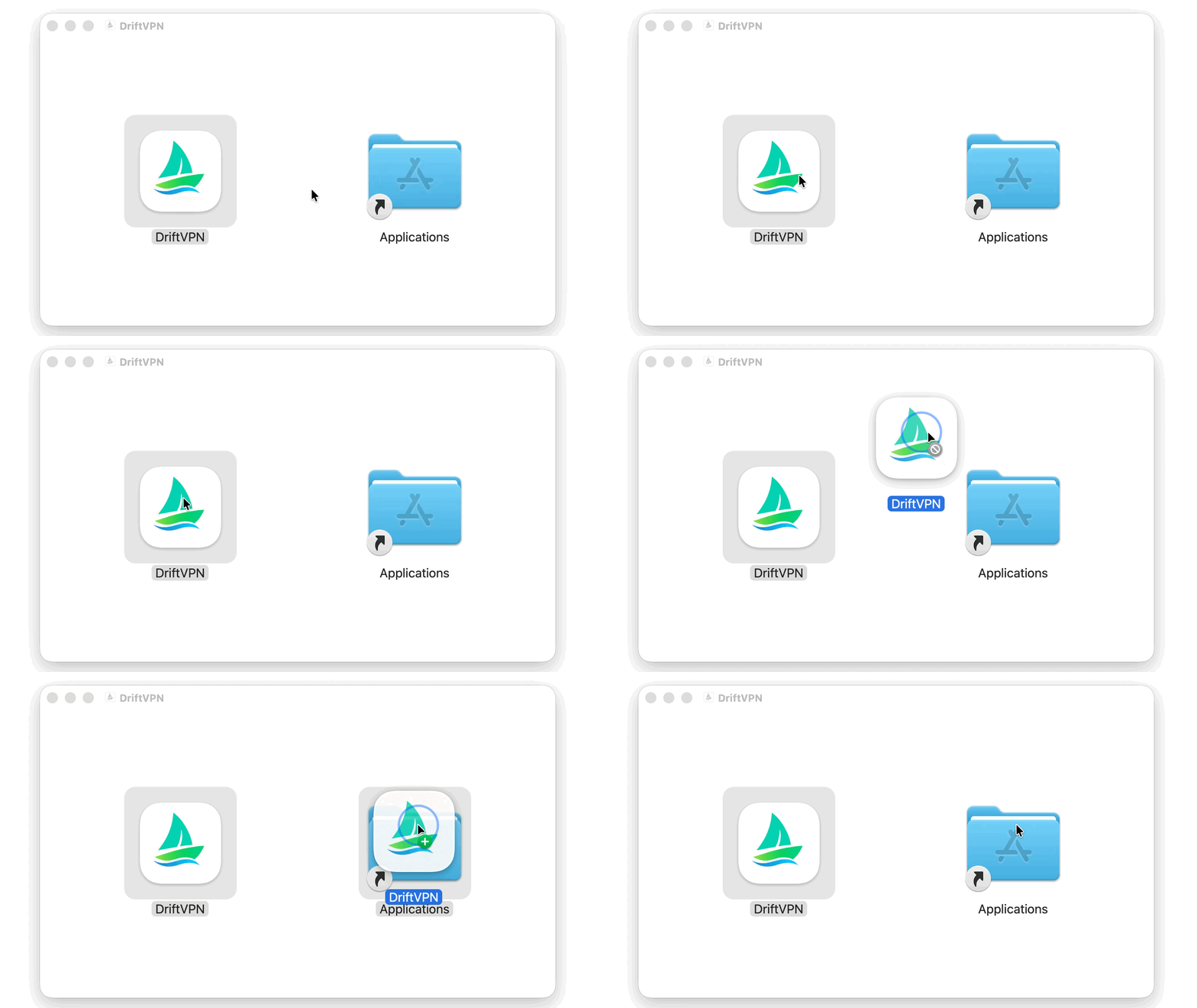
macOS yükleyicisini indirdikten sonra .dmg dosyasını açın ve VPN'i Uygulamalar'a sürükleyin.

- 2.
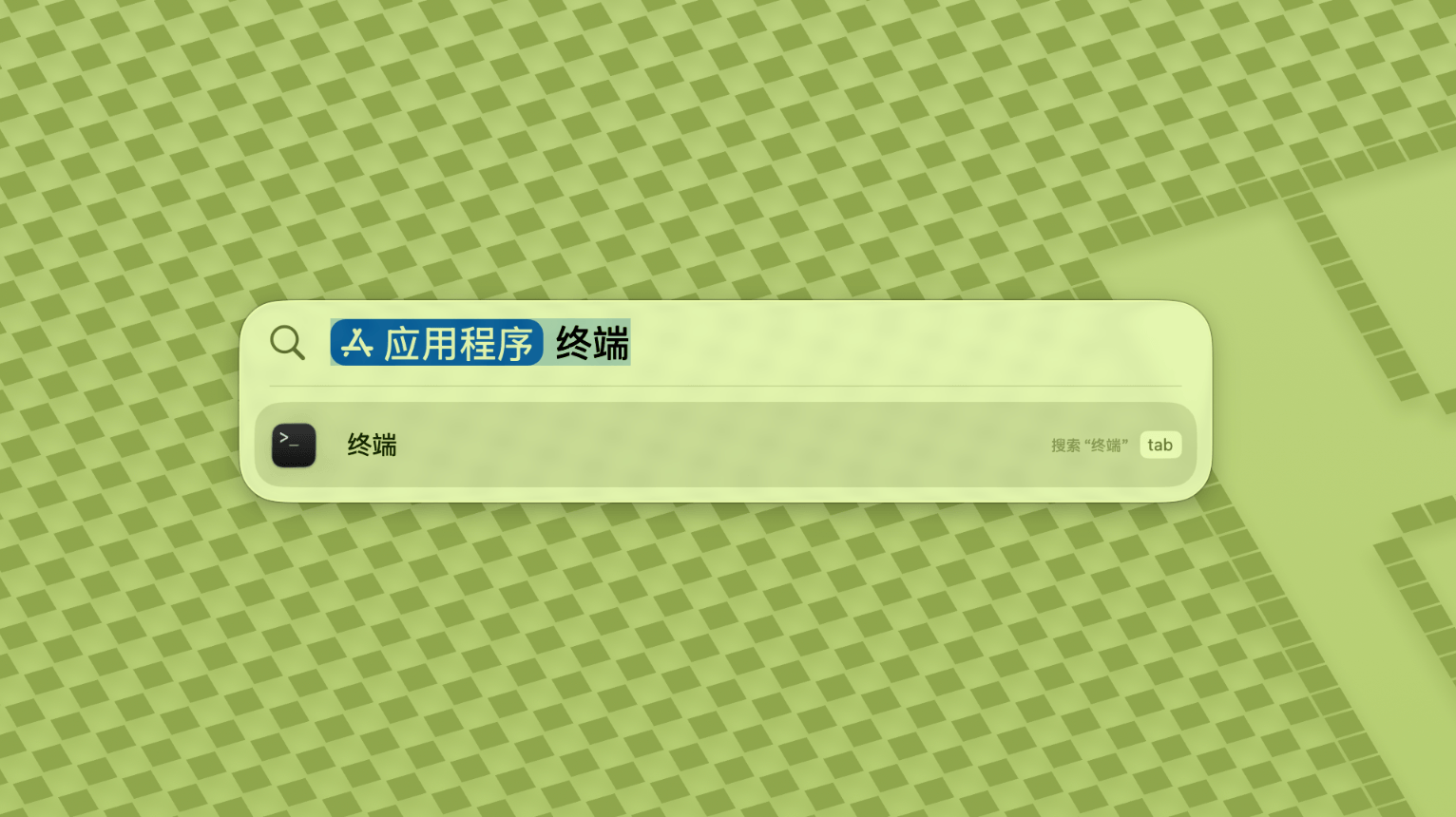
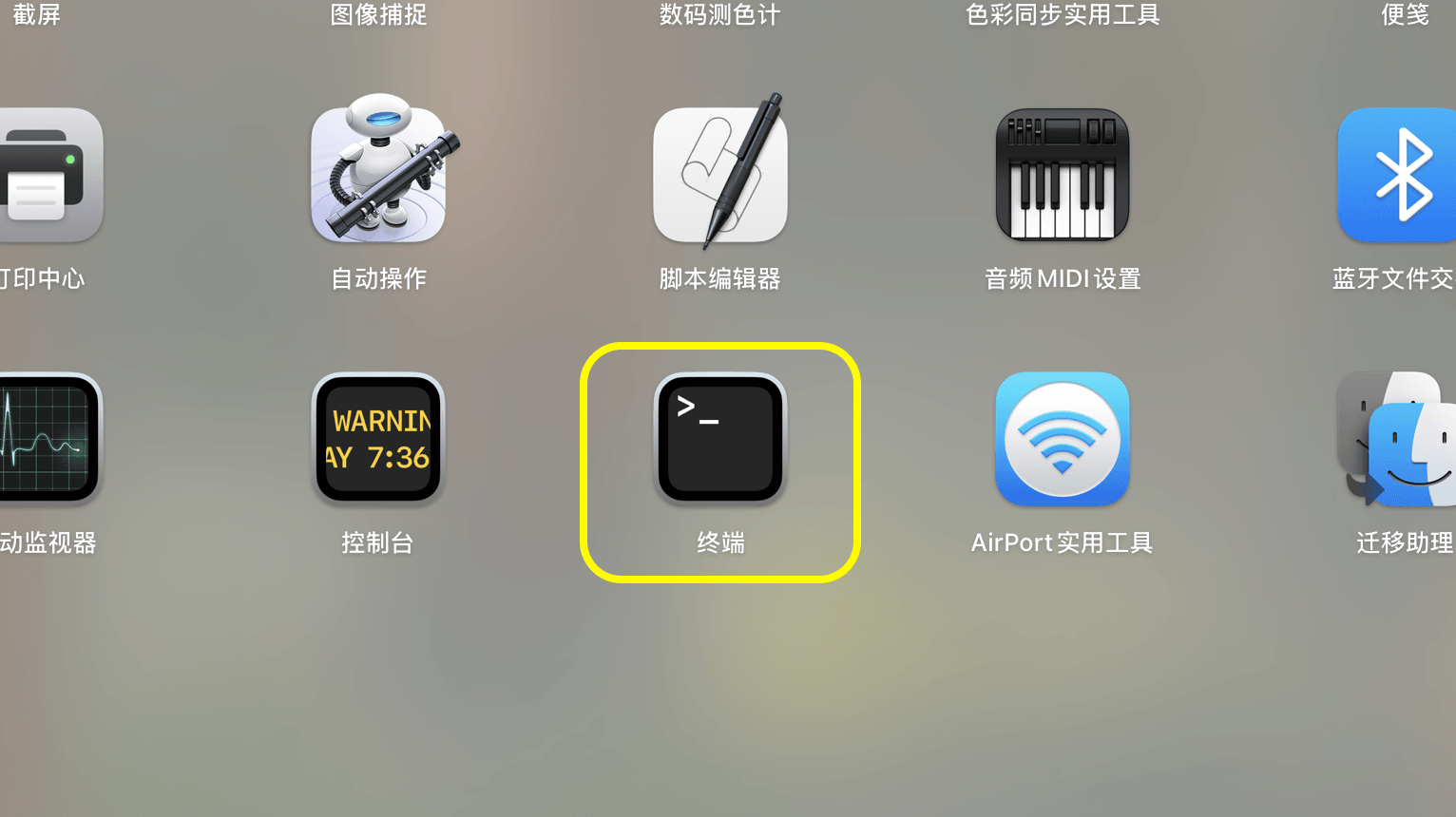
Launchpad veya Spotlight'ı açın, Terminal'i arayıp açın.
- 3.
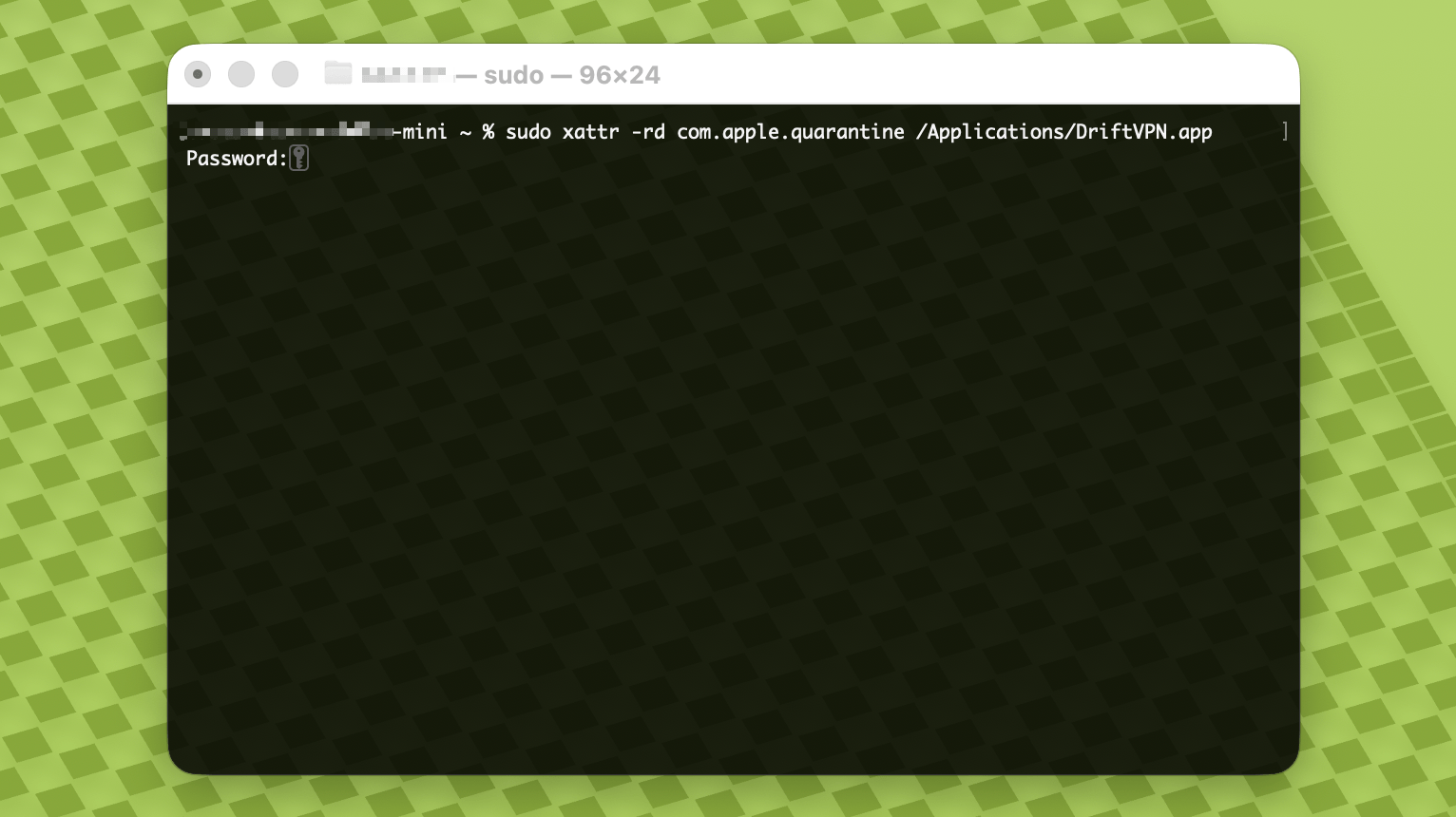
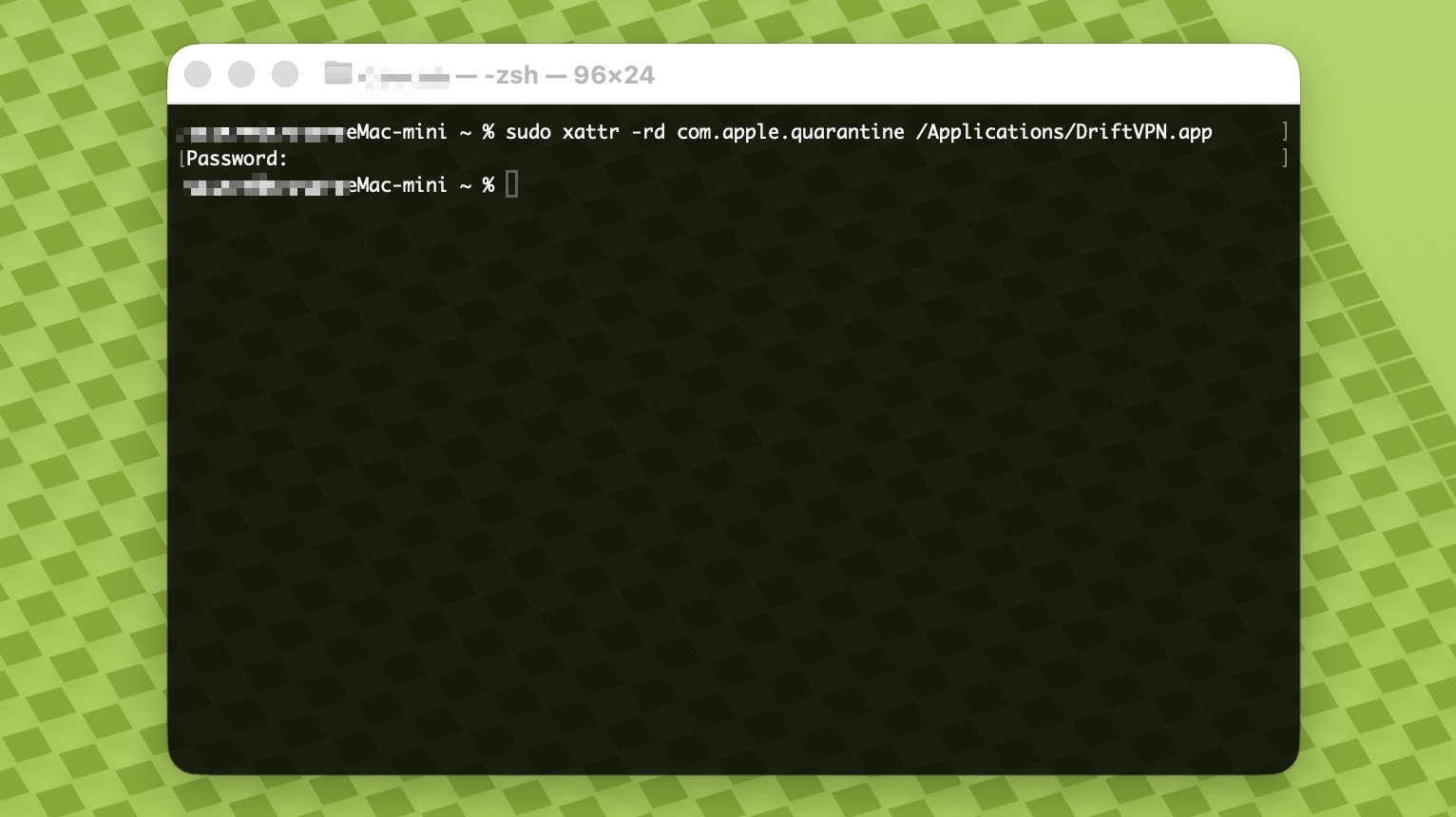
Aşağıdaki komutu Terminal'e yapıştırın ve Enter'a basın. İstendiğinde Mac giriş şifrenizi girin; yazarken karakterler görünmez. Bittiğinde tekrar Enter'a basın.
sudo xattr -rd com.apple.quarantine /Applications/DriftVPN.app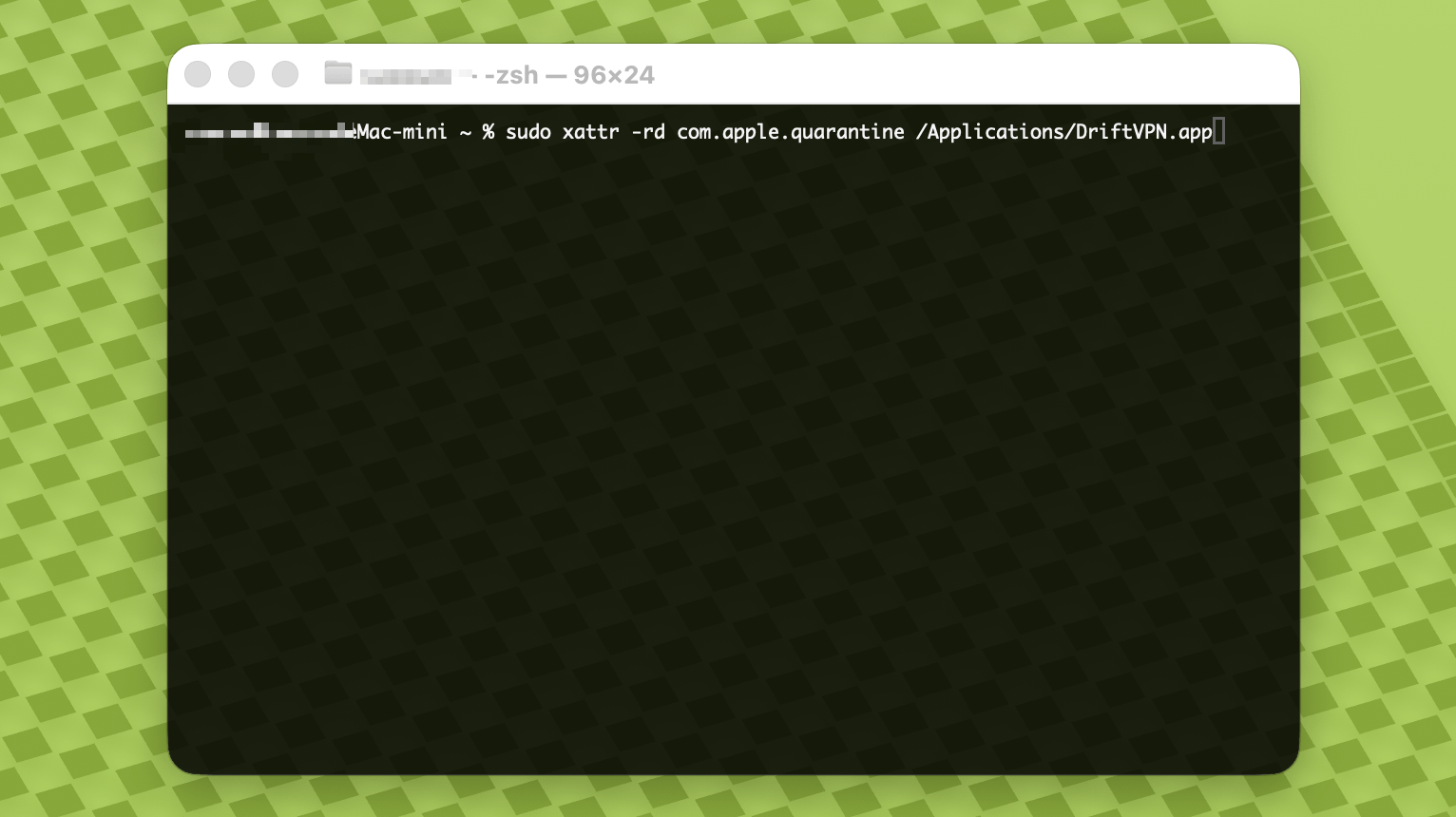
- 4.
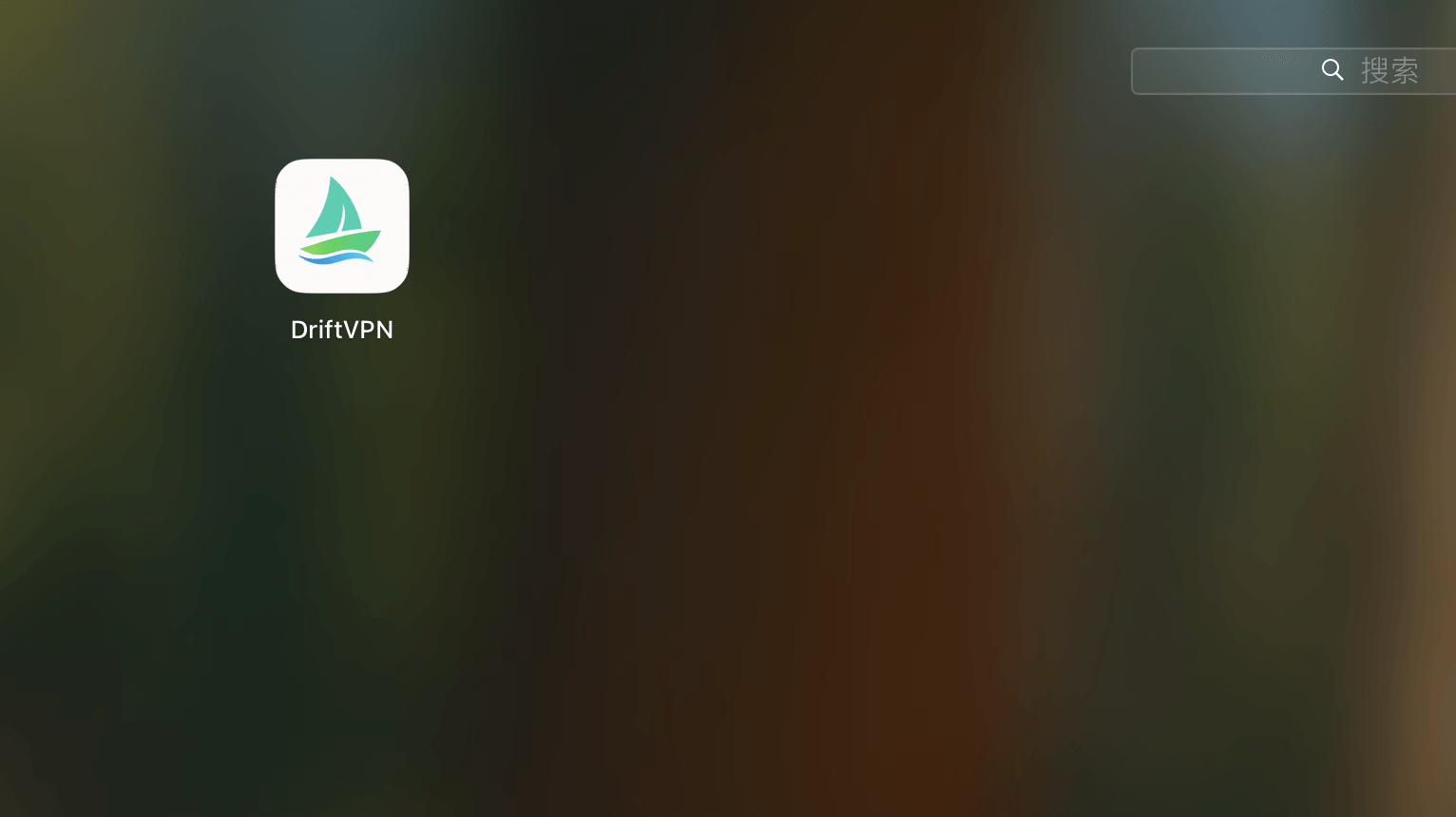
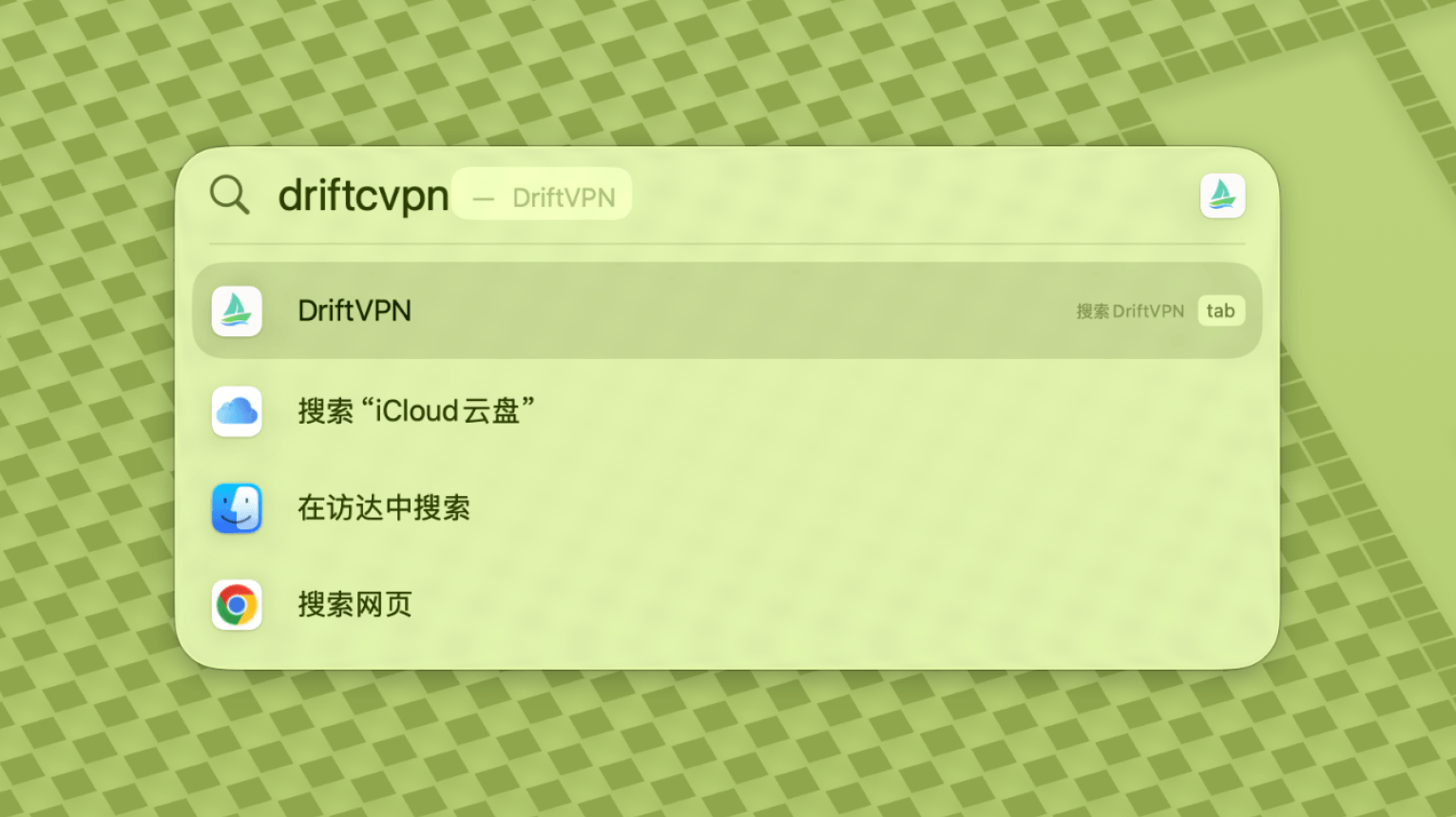
Komut tamamlandıktan sonra VPN'i arayın veya Uygulamalar'dan açın.
- 5.
macOS uygulamayı engellemeye devam ederse Sistem Ayarları → Gizlilik ve Güvenlik'e gidin ve Güvenlik bölümünde Yine de Aç'a tıklayın. Uygulama hasarlı diyorsa en son yükleyiciyi tekrar indirin ve komutu tekrarlayın.
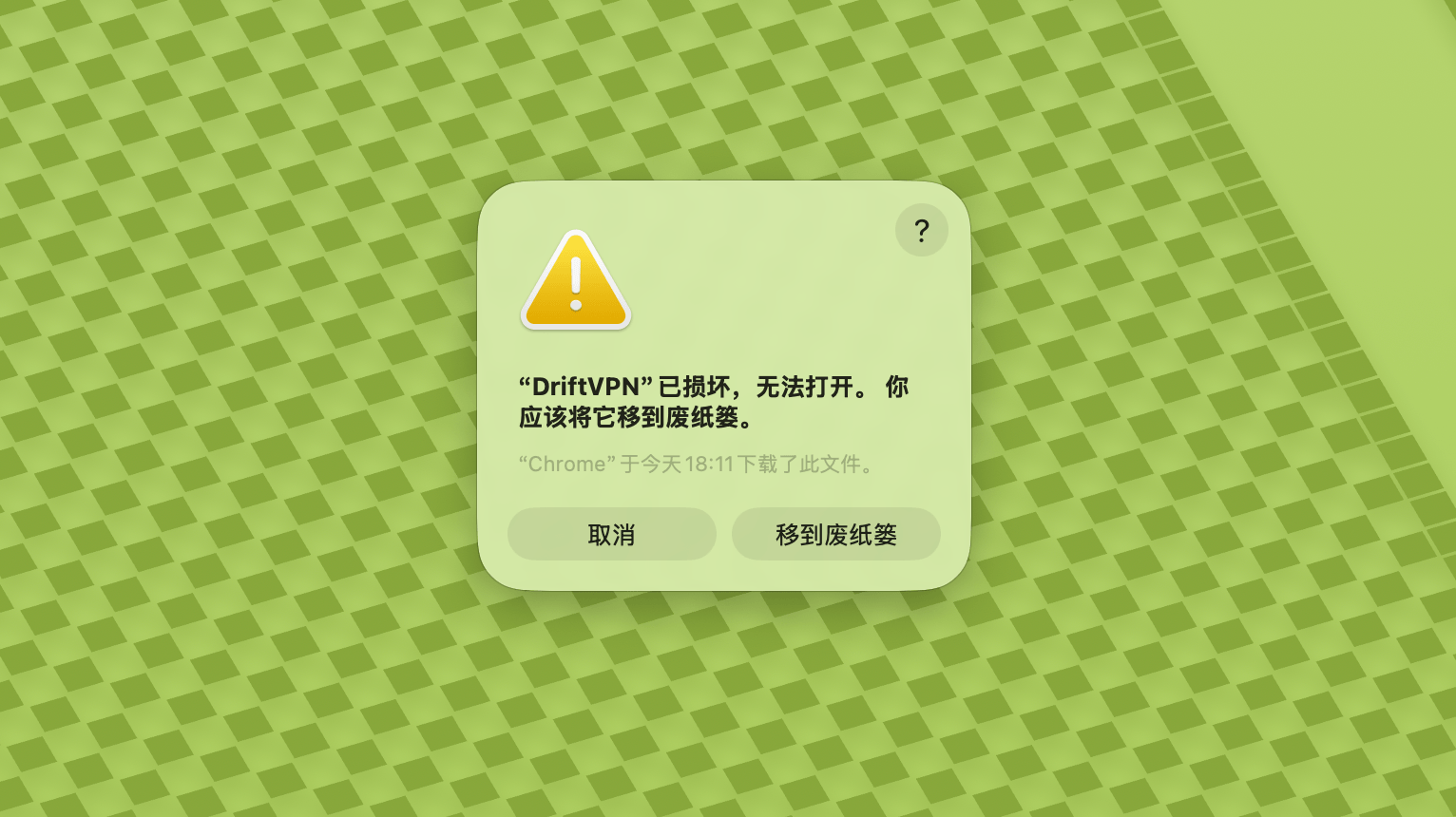
macOS'ta VPN'i açamıyorsanız Sistem Ayarları → Gizlilik ve Güvenlik'e gidin, Güvenlik bölümüne kaydırın ve Yine de Aç'a tıklayın.
Windows bilgisayarınızın x64, ARM64 veya x86 (32 bit) işlemci kullanıp kullanmadığını doğrulamak için:
- Sistem bilgisi aracını açın. Win + R tuşlarına basın, msinfo32 yazın ve Enter'a basın
- Sistem Özeti → Sistem Türü'ne gidin, sistem mimarisi bilgilerini göreceksiniz
Hata mesajı: proxy yürütülebilir dosyası mevcut değil. Veya mesaj: dosya virüs veya potansiyel olarak istenmeyen yazılım içeriyor. Çözüm:
Yöntem 1:
- 'Ayarlar' → 'Gizlilik ve Güvenlik' → 'Windows Güvenlik Merkezi' → 'Virüs ve Tehdit Koruması'nı açın
- 'Ayarları Yönet'e tıklayın
- Alt kısımda istisnaları ekleyin veya kaldırın ve Drift kurulum dizinini istisnalara ekleyin
Yöntem 2:
- 'Ayarlar' → 'Gizlilik ve Güvenlik' → 'Windows Güvenlik Merkezi' → 'Virüs ve Tehdit Koruması'nı açın
- 'Ayarları Yönet'e tıklayın
- 'Gerçek Zamanlı Korumayı' kapatın
Uygulama Windows'ta başlatıldıktan sonra bağlanamıyorsa, genellikle Windows Defender Güvenlik Duvarı onu engelliyor. Çözümler:
Yöntem 1: Denetim Masası ile istisna ekle
- Win + S tuşuna basın ve arayın: Denetim Masası
- Şuraya gidin: Sistem ve Güvenlik → Windows Defender Güvenlik Duvarı
- Soldan tıklayın: Uygulama veya özelliğin Windows Defender Güvenlik Duvarı'ndan geçmesine izin ver
- Sağ üst köşede tıklayın: Ayarları değiştir
- Tıklayın: Başka bir uygulamaya izin ver
- Tıklayın: Gözat ve .exe dosyanızı seçin (varsayılan yol: C:\Users\[kullanıcı]\AppData\Local\VPN\QingZhou.exe)
- Ekledikten sonra işaretleyin: Özel ve Genel (harici ağ erişimi gerekiyorsa)
- Tıklayın: Tamam
Yöntem 2: Gelişmiş Güvenlikli Windows Defender Güvenlik Duvarı'nda kural oluştur
- Win + S tuşuna basın, 'Gelişmiş Güvenlikli Windows Defender Güvenlik Duvarı' arayın ve açın
- Solda 'Gelen Kuralları'na tıklayın → sağda 'Yeni Kural'a tıklayın
- Seçin: Program → İleri
- 'Bu program yolu'nu seçin, .exe dosyanıza göz atın → İleri
- Seçin: Bağlantıya izin ver → İleri
- İşaretleyin: Etki Alanı, Özel, Genel (genellikle hepsi) → İleri
- Bir ad girin (örn. DriftVpn Inbound) → Son
- 'Giden Kuralları' için adımları tekrarlayın (solda 'Giden Kuralları'nı seçin; akış aynıdır)
VPN'i Android için şu şekilde indirebilir ve kurabilirsiniz:
- Resmi indirme sayfasını açın ve Android'i seçin.
- Android kurulum paketini telefonunuza veya tabletinize indirin.
- İndirilen APK dosyasını tarayıcı indirmelerinden veya dosya yöneticisinden açın.
- Android bilinmeyen uygulama yükleme izni isterse mevcut tarayıcı veya dosya yöneticisi için izin verin ve kuruluma devam edin.
Bazı tarayıcılar veya sistemler APK dosyasını .zip uzantısıyla kaydedebilir. Şöyle yapın:
- Dosyayı sıkıştırmayın.
- Dosya yöneticisini açın ve indirilen dosyayı yeniden adlandırarak uzantıyı .zip'ten .apk'ya değiştirin.
- Yeniden adlandırılmış .apk dosyasına dokunarak kurun.
- Yeniden adlandıramıyorsanız tekrar indirin veya APK'yı başka bir tarayıcıyla indirin.
Politika nedeniyle VPN Çin App Store'unda mevcut değildir. Şu şekilde indirebilirsiniz:
- Çin dışı bir Apple ID'ye ihtiyacınız var (örn. ABD, Japonya, Hong Kong vb.)
- App Store'da Çin dışı hesaba geçin
- 'VPN' arayarak bulun ve indirin
- Yurt dışı Apple ID'niz yoksa ücretsiz yurt dışı Apple ID nasıl kaydedilir diye online rehber arayabilirsiniz
Hesap
Giriş şifrenizi unuttuysanız şu adımları izleyerek sıfırlayabilirsiniz:
- Giriş sayfasına gidin ve 'Şifremi Unuttum?' bağlantısına tıklayın
- Kayıtlı e-posta adresinizi girin
- E-postanızdaki 6 haneli doğrulama kodunu kontrol edin (5 dakika geçerli)
- Sıfırlamayı tamamlamak için doğrulama kodunu ve yeni şifrenizi girin
Ödeme sorunları
Şu anda aşağıdaki ödeme yöntemleri desteklenmektedir:
- Visa/Mastercard
Aboneliğinizi iptal etmeniz gerekiyorsa, önce hangi platformdan abone olduğunuzu doğrulayın. İptal yöntemi platforma göre farklılık gösterir; uygulamayı kaldırmak aboneliği otomatik olarak iptal etmez.
Web Sitesi Üzerinden Abonelik
Adımlar:
- Resmi web sitesine gidin ve sağ üst köşeden hesabınıza giriş yapın.
- Giriş yaptıktan sonra sağ üst köşedeki "Hesabım – Plan ve Faturalama" seçeneğine tıklayın.
- Plan bilgilerinizin yanındaki Yönet düğmesine tıklayın.
- Stripe sayfasında aboneliğinizi iptal edin.
iOS
iPhone veya iPad'de App Store üzerinden abone olduysanız, Apple üzerinden iptal edin:
- iPhone veya iPad'inizde Ayarlar'ı açın.
- Üstteki Apple hesap adınıza dokunun.
- Abonelikler'e dokunun.
- VPN aboneliğini seçin.
- Aboneliği İptal Et'e dokunun.
iOS cihaz kullanıyorsanız ancak resmi web sitesinden abone olduysanız, yukarıdaki "Web Sitesi Üzerinden Abonelik" adımlarını izleyin.
Android
Google Play dışındaki Android abonelikleri Stripe üzerinden işlenir. İptal için yukarıdaki "Web Sitesi Üzerinden Abonelik" bölümüne bakın.
Android – Google Play
Google Play üzerinden abone olduysanız, Google Play üzerinden iptal edin:
- Google Play'i açın.
- Sağ üst köşedeki profil simgesine dokunun.
- Ödemeler ve abonelikler bölümüne gidin.
- Abonelikler'e dokunun.
- VPN aboneliğini seçin.
- Aboneliği iptal et'e dokunun ve talimatları izleyin.
Mac
Mac App Store dışındaki Mac abonelikleri Stripe üzerinden işlenir. İptal için yukarıdaki "Web Sitesi Üzerinden Abonelik" bölümüne bakın.
Mac – App Store
Mac App Store üzerinden abone olduysanız, Apple üzerinden iptal edin:
- Mac'inizde App Store'u açın.
- Hesap adınıza tıklayın.
- Hesap Ayarları'na tıklayın.
- Abonelikler'i bulun ve Yönet'e tıklayın.
- VPN aboneliğini seçin.
- Aboneliği İptal Et'e tıklayın.
Windows
İptal için yukarıdaki "Web Sitesi Üzerinden Abonelik" bölümüne bakın.
Kullanım
VPN denemenizi şu adımlarla başlatabilirsiniz:
- Resmi web sitesinde veya herhangi bir istemcide hesap oluşturun
- Herhangi bir istemcide hesabınıza giriş yapın
- Hizmeti kullanmaya başlamak için ana sayfadaki anahtar düğmesine dokunun
Aktivasyon kodunuz varsa giriş yaptıktan sonra kullanabilirsiniz:
- Web sitesinde veya istemcide hesabınıza giriş yapın.
- Sağ üst köşedeki Hesabım'a tıklayın, ardından açılır menüden Aktivasyon kodunu kullan seçeneğini seçin.
- Aktivasyon kodunu girin ve kullanımı onaylayın.
- Kullanım başarılı olduktan sonra ilgili paket veya avantaj hesabınıza otomatik olarak eklenir.
- Başarı mesajı görünmüyorsa aktivasyon kodu zaten kullanılmış demektir.
- Aktivasyondan sonra paketin veya avantajın geçerli olması için uygulamayı yeniden başlatın.
VPN şu anda aşağıdaki platformları desteklemektedir:
- Android (telefon ve tabletler)
- iOS (iPhone ve iPad, Çin dışı App Store gerektirir)
- macOS (Intel ve Apple Silicon çiplerini destekler)
- Windows (x64 mimarisini destekler)
Bir hesap aynı anda en fazla 3 cihazın çevrimiçi olmasını destekler. İstemciyi daha fazla cihaza kurup aynı hesapla giriş yapabilirsiniz; sınır yalnızca aynı anda bağlı cihaz sayısı için geçerlidir. Sınır aşılırsa ilk bağlanan cihaz otomatik olarak bağlantıdan çıkarılır. İstemci şu anda diğer cihazların bağlantısını kesmeyi veya onları tek tıkla oturumdan çıkarmayı desteklemez. Bir çevrimiçi yeri boşaltmak için ilgili cihazda manuel olarak bağlantıyı kesin veya oturumu kapatın.
VPN üzerinden hangi trafiğin geçeceğini kontrol ederler:
- Global Proxy, ağ trafiğinin büyük bölümünü VPN üzerinden gönderir. Tüm uygulamalar ve web sitelerinin proxy bağlantısını kullanmasını istediğinizde kullanın.
- Akıllı Yönlendirme yalnızca hızlandırma veya erişim optimizasyonu gereken trafiği proxy üzerinden yönlendirir. Yerel ve doğrudan erişilebilen trafik özgün ağda kalır; bu genellikle günlük kullanım için daha iyidir.
- Yerleşik VPN kuralları çoğu ihtiyacı karşılar ve kendi proxy kurallarınızı da ekleyebilirsiniz.
- 1.
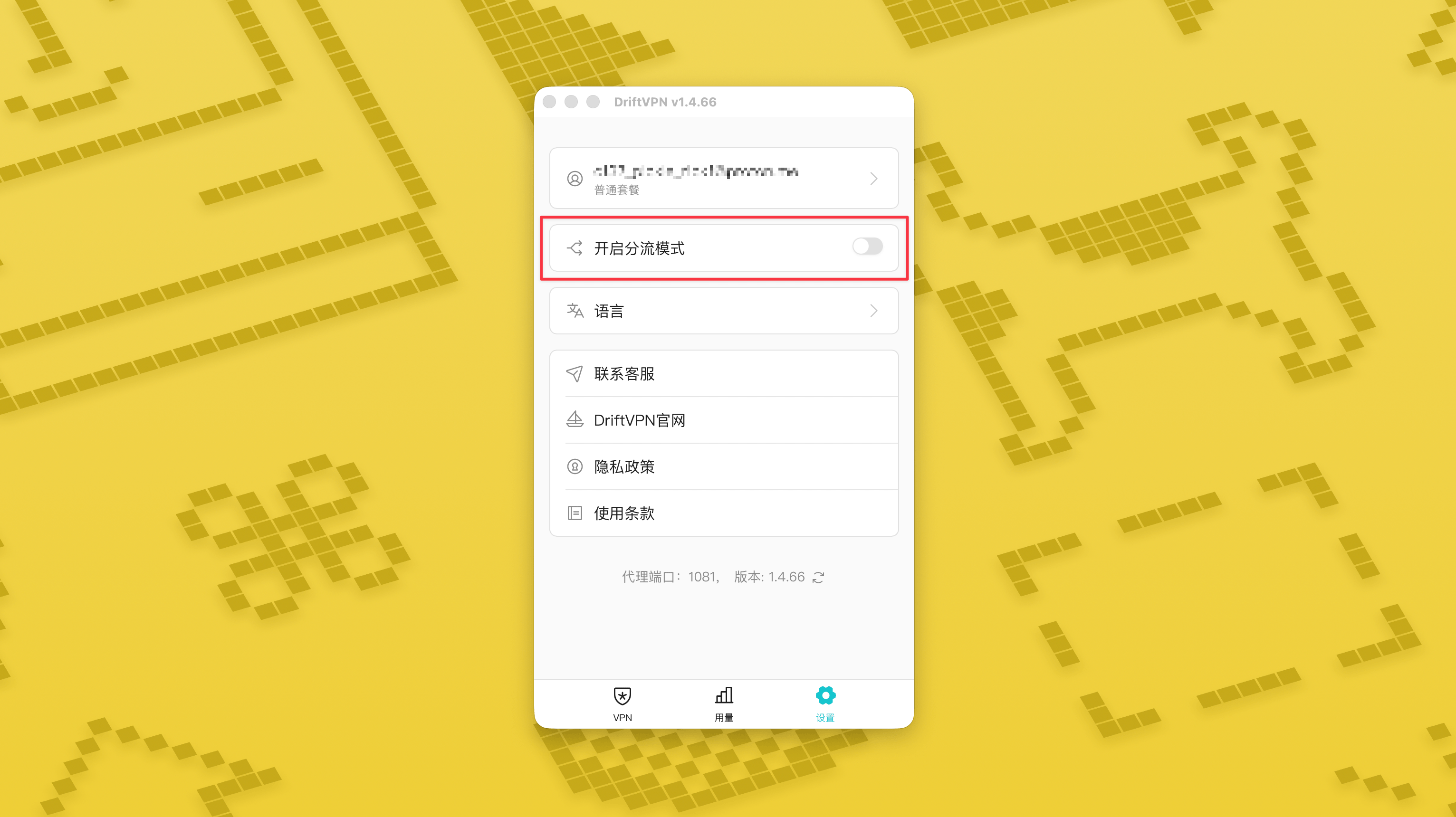
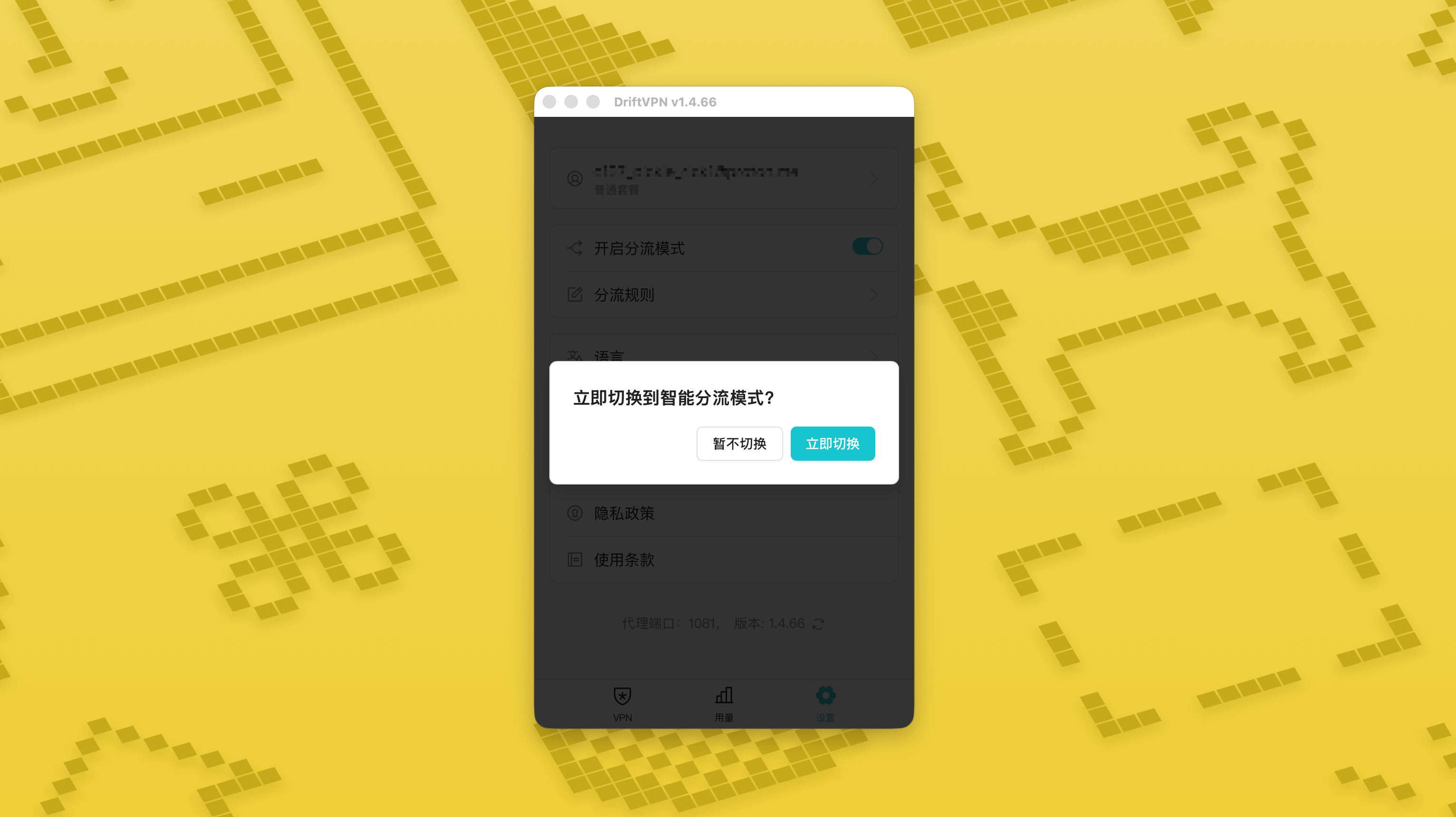
Ayarlar sayfasında Akıllı Yönlendirme modu anahtarını açın, ardından etkinleştirmek için «Şimdi değiştir» seçeneğine dokunun.
- 2.
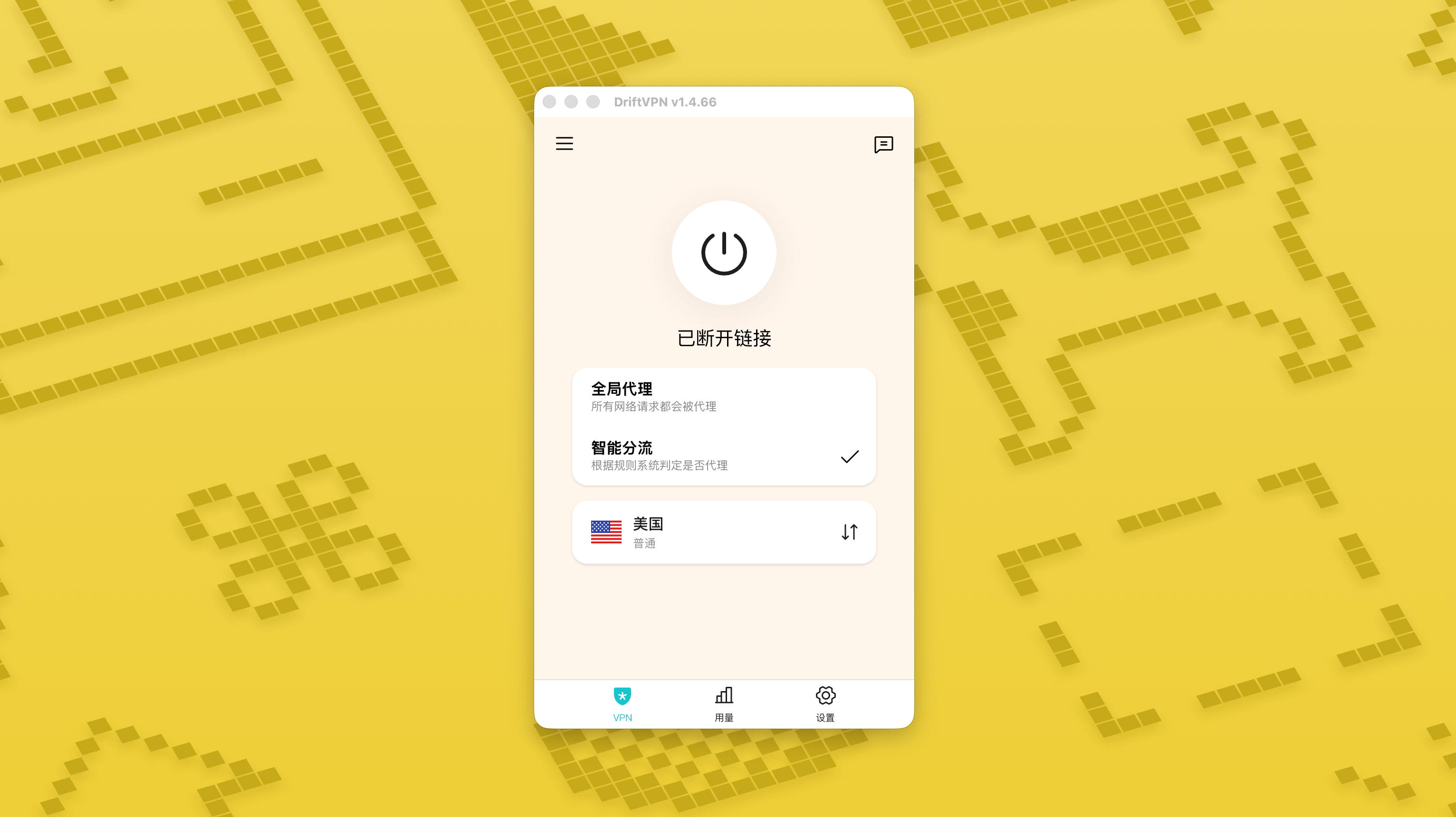
Etkinleştirildikten sonra ana sayfada «Genel Proxy» ile «Akıllı Yönlendirme» arasında geçiş yapabilirsiniz.
- 3.
Akıllı Yönlendirme modu açıldıktan sonra Ayarlar içinde «Yönlendirme Kuralları» sayfası görünür.
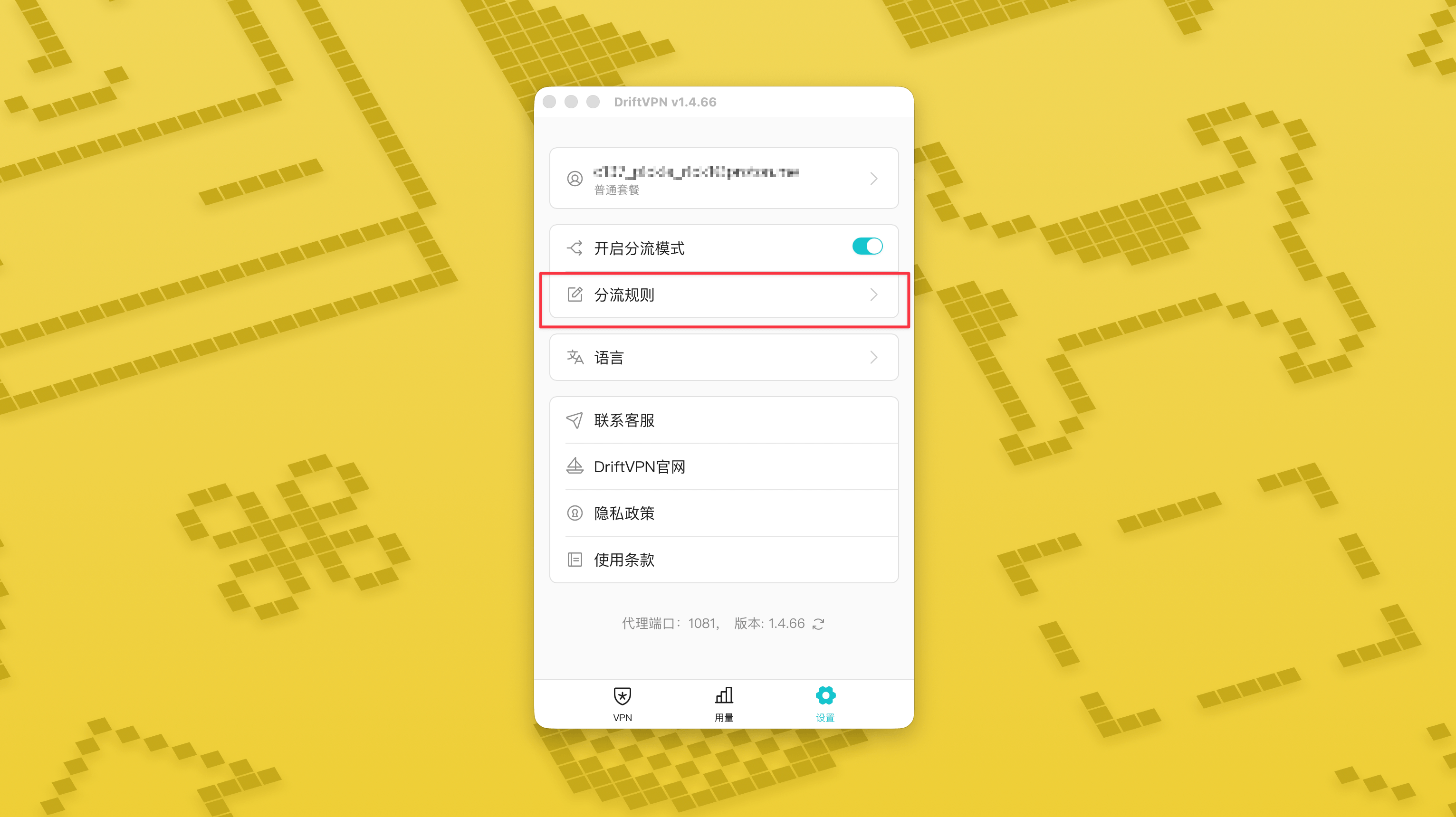
- 4.
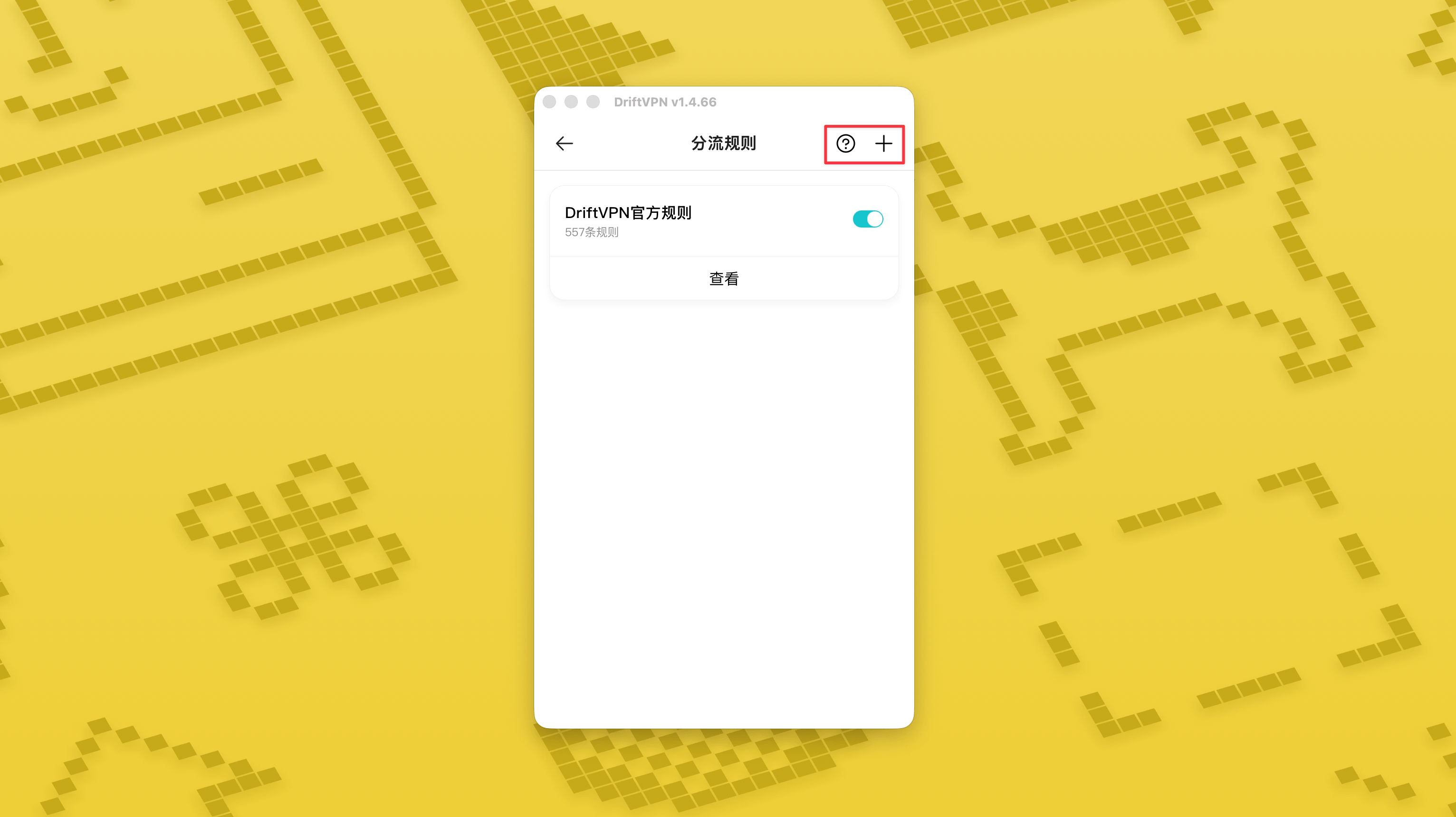
«Yönlendirme Kuralları» sayfasının sağ üst köşesinde yeni bir kural eklemek için «+» düğmesine, kuralların nasıl yazılacağını görmek içinse «?» düğmesine dokunun. Her kural grubu kendi anahtarıyla etkinleştirilebilir veya devre dışı bırakılabilir.
Clash gibi bir proxy aracı kullanıyorsanız DriftVPN'i ön uç proxy olarak kullanıp son çıkış olarak konut IP proxy'nize bağlanabilirsiniz. Bu, "önce DriftVPN üzerinden bağlantı kurup ardından hedef web sitesine konut IP'si üzerinden erişmem gerekiyor" diyen ileri düzey kullanıcılar için uygundur.
DriftVPN için varsayılan yerel proxy portu 'dur. Bu port başka bir program tarafından kullanılıyorsa istemci otomatik olarak bir sonraki portu dener, örneğin 、. Yapılandırırken lütfen istemcide o an görüntülenen yerel proxy portunu kullanın (başarılı bağlantıdan sonra VPN ayarları sayfasının alt kısmındaki port numarasını kontrol edin).
Proxy zincirlemeyi destekleyen bir Clash / Mihomo istemcisi örnek alarak şu şekilde yapılandırabilirsiniz:
proxies: - name: "轻舟VPN 前置代理" type: http server: 127.0.0.1 port: 9527 - name: "住宅IP落地" type: http server: your-residential-proxy.example.com port: 12345 username: "your-username" password: "your-password"proxy-groups: - name: "轻舟VPN + 住宅IP" type: relay proxies: - "轻舟VPN 前置代理" - "住宅IP落地" - name: "PROXY" type: select proxies: - "轻舟VPN + 住宅IP" - DIRECTrules: - MATCH,PROXY
Notlar:
- Yukarıdaki konut IP proxy bilgileri, servis sağlayıcınızın verdiği gerçek adres, port, kullanıcı adı ve şifreyle değiştirilmelidir.
- DriftVPN'de görüntülenen yerel proxy portu 9527 değilse yapılandırmadaki portu gerçek portla değiştirin.
- Konut IP proxy türünüz, servis sağlayıcınızın sunduğu protokole göre doldurulmalıdır. Yaygın değerler http veya socks5'tir.
- Proxy zincirleme desteği farklı Clash istemcileri arasında farklılık gösterir. Yapılandırma çalışmıyorsa mevcut istemci çekirdeğinin relay türü proxy grubunu destekleyip desteklemediğini kontrol edin.
- Bu kullanım Clash yapılandırmasına aşina ileri düzey kullanıcılar için uygundur. Normal kullanıcıların DriftVPN istemcisindeki yerleşik Global Proxy veya Akıllı Yönlendirme'yi kullanması önerilir.
Evet. Erişim kararsızsa başka bir rotaya geçip tekrar deneyin.
Mevcut kullanım durumunuza göre rota seçebilirsiniz:
- Günlük kullanım için gecikme önemsemiyorsanız herhangi bir rota olur.
- Gecikme önemliyse coğrafi olarak size daha yakın bir düğüm seçin.
- Bölgeye özel akış içeriği gibi IP bölgesi kısıtlaması olan web sitelerine veya hizmetlere erişmeniz gerekiyorsa ilgili ülke veya bölgedeki bir düğüm seçin.
Müşteri desteğini yalnızca aşağıdaki sorunlar için sağlıyoruz:
- Hesap giriş sorunları
- Ödeme / sipariş sorunları
- Bağlanamama gibi hizmetin tamamen kullanılamadığı durumlar
Aşağıdaki durumlar müşteri desteği kapsamı dışındadır:
- Takılma, düşük hız veya kararsız hız gibi öznel deneyim sorunları
- Web sitesi veya uygulama gibi üçüncü taraf platformlara yavaş erişim
- Kullanıcının yerel ağ ortamı, cihazı, operatörü veya benzeri faktörlerinden kaynaklanan sorunlar
- Resmi öğreticiyi takip etmemekten veya ayarları kendi başınıza değiştirmekten kaynaklanan sorunlar
- Ağ kalitesi kullanıcının bulunduğu yerdeki operatörden ve uluslararası hatlardan büyük ölçüde etkilenir; bu nedenle platform tüm bölgelerde ve zamanlarda erişim deneyimini garanti edemez.
Herhangi bir sorunla karşılaşırsanız aşağıdaki yöntemlerle bize ulaşabilirsiniz:
- Sorununuzu 'Geri Bildirim' sayfası üzerinden gönderin, e-posta ile yanıt vereceğiz.Geri Bildirim'e Git
- Destek e-postamıza e-posta gönderin:support@qz.run
- Telegram'da bize ulaşın:@driftvpn_offical